Activity Logs
The Activity Logs section provides a complete, tamper-proof audit trail of every action taken by admin users in the SnapCart admin panel. Use it to monitor team activity, investigate issues, and meet compliance requirements.
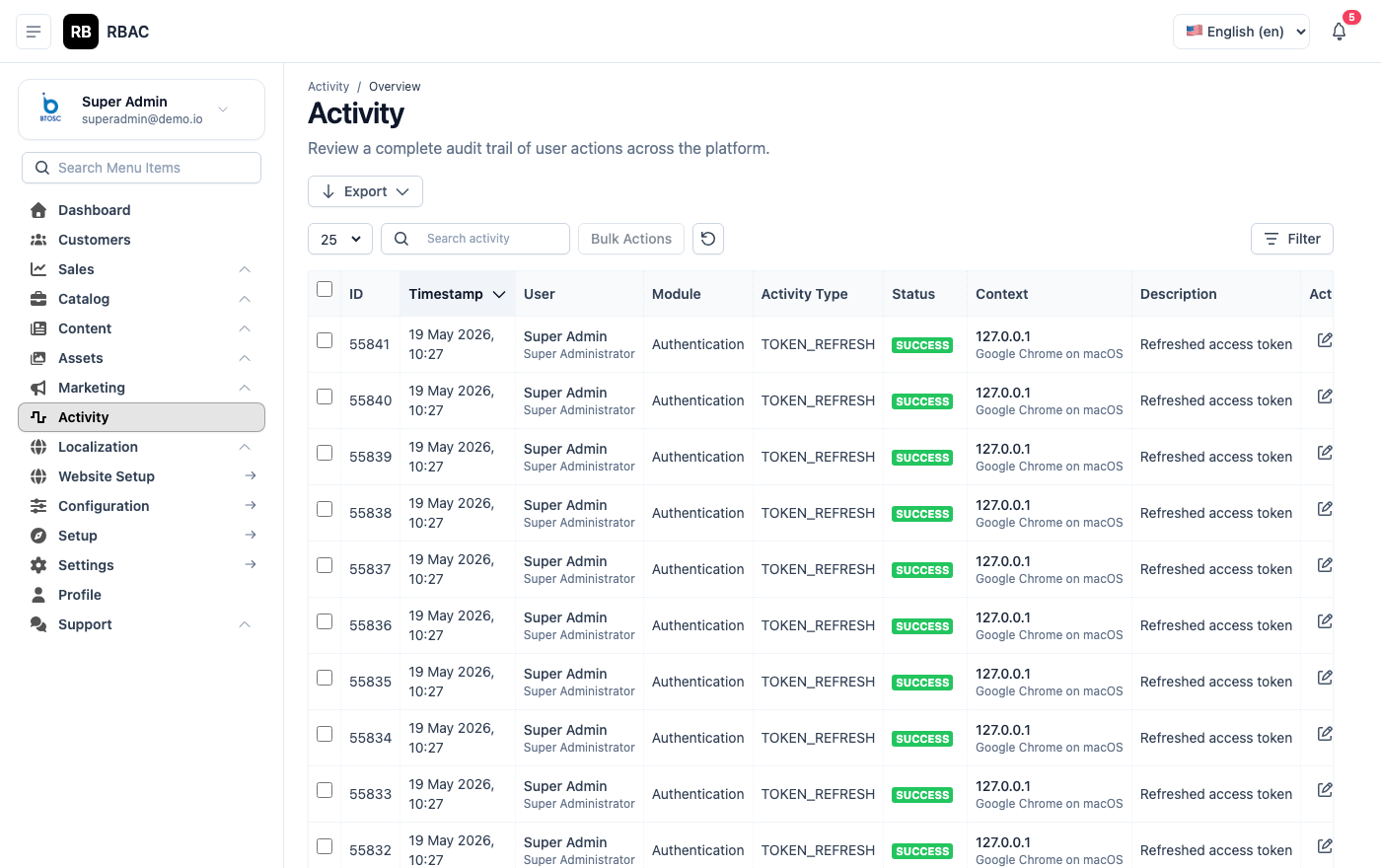 Activity Logs list showing admin user, action type, affected module, description, IP address, and timestamp
Accessing Activity Logs
Click Activity Logs in the left sidebar.
:::info Permission required
Only users with the activity-log.view permission can access this section. Super Admins always have access.
:::
What Gets Logged
Every write operation performed by any admin user is automatically recorded:
| Action Type | Examples |
|---|---|
| Created | New product added, new user created, new coupon added |
| Updated | Product price changed, order status updated, settings modified |
| Deleted | Product deleted, blog post removed, customer account deleted |
| Login | Successful admin panel login |
| Logout | Admin panel logout |
| Failed Login | Failed login attempt (wrong password) |
Log List
Columns
| Column | Description |
|---|---|
| Admin | The admin user who performed the action (name + email) |
| Action | What was done: Created, Updated, Deleted, Login, etc. |
| Module | Which section was affected (Product, Order, User, Settings, etc.) |
| Description | Human-readable summary of the change (e.g., "Updated product 'iPhone 15 Pro' — price changed from ₹89,999 to ₹84,999") |
| IP Address | The IP address of the admin at the time of the action |
| Date & Time | Exact timestamp in the store's configured timezone |
Sorting
The log is sorted by Date descending by default (most recent first). Click any column header to re-sort.
Filtering Logs
Filter bar showing admin user selector, action type filter, module filter, and date range picker
| Filter | Options |
|---|---|
| Admin User | Filter by a specific admin account |
| Action | Created, Updated, Deleted, Login, Failed Login |
| Module | Product, Order, Customer, Coupon, Shipping, Settings, User, Role, etc. |
| Date Range | Custom start and end date |
| IP Address | Filter to see all actions from a specific IP |
Combine multiple filters to narrow down exactly what you're looking for.
Viewing Log Detail
Click any log row to see the full detail, including:
- Before value — The data as it was before the change
- After value — The data as it was set after the change
Log detail showing the before and after JSON values for an order status update
This before/after comparison is especially useful when investigating:
- Unintended price changes
- Status changes made by the wrong team member
- Settings modifications that caused unexpected behaviour
Searching Logs
Use the Search bar to search within log descriptions. For example:
- Search
"order #1042"to see all actions taken on that specific order - Search
"product"to see all product-related changes - Search an admin's name to see everything they've done
Security Use Cases
Investigating a suspicious change
- Apply the Module filter to narrow down (e.g., "Settings")
- Apply the Date Range filter to the period in question
- Review the Description column to identify the change
- Click the row to see before/after values
- Note the Admin and IP Address
Monitoring a new team member
- Filter by the team member's admin account
- Set the date range to their onboarding period
- Review all Created, Updated, and Deleted actions to ensure they're working within expected scope
Responding to a complaint
If a customer reports an incorrect order status or wrong price:
- Filter by Module: Order (or Product)
- Search for the order number or product name
- Find the log entry showing when and by whom the change was made
- Contact the responsible team member for clarification
Retention and Deletion
Activity logs are permanent and cannot be deleted by any admin user — including the Super Admin. This is by design to ensure audit integrity.
Logs are retained indefinitely. If your database grows large, consult the Developer Guide for database archiving strategies.
Exporting Logs
- Apply any filters needed to scope the export.
- Click Export at the top-right.
- A CSV file downloads with all matching log entries.
The export is useful for compliance reporting, external security audits, or importing into a SIEM (Security Information and Event Management) system.