Blog
The Blog section lets you publish articles on your storefront to engage customers, drive SEO, and share news about your store. Go to Blog in the left sidebar.
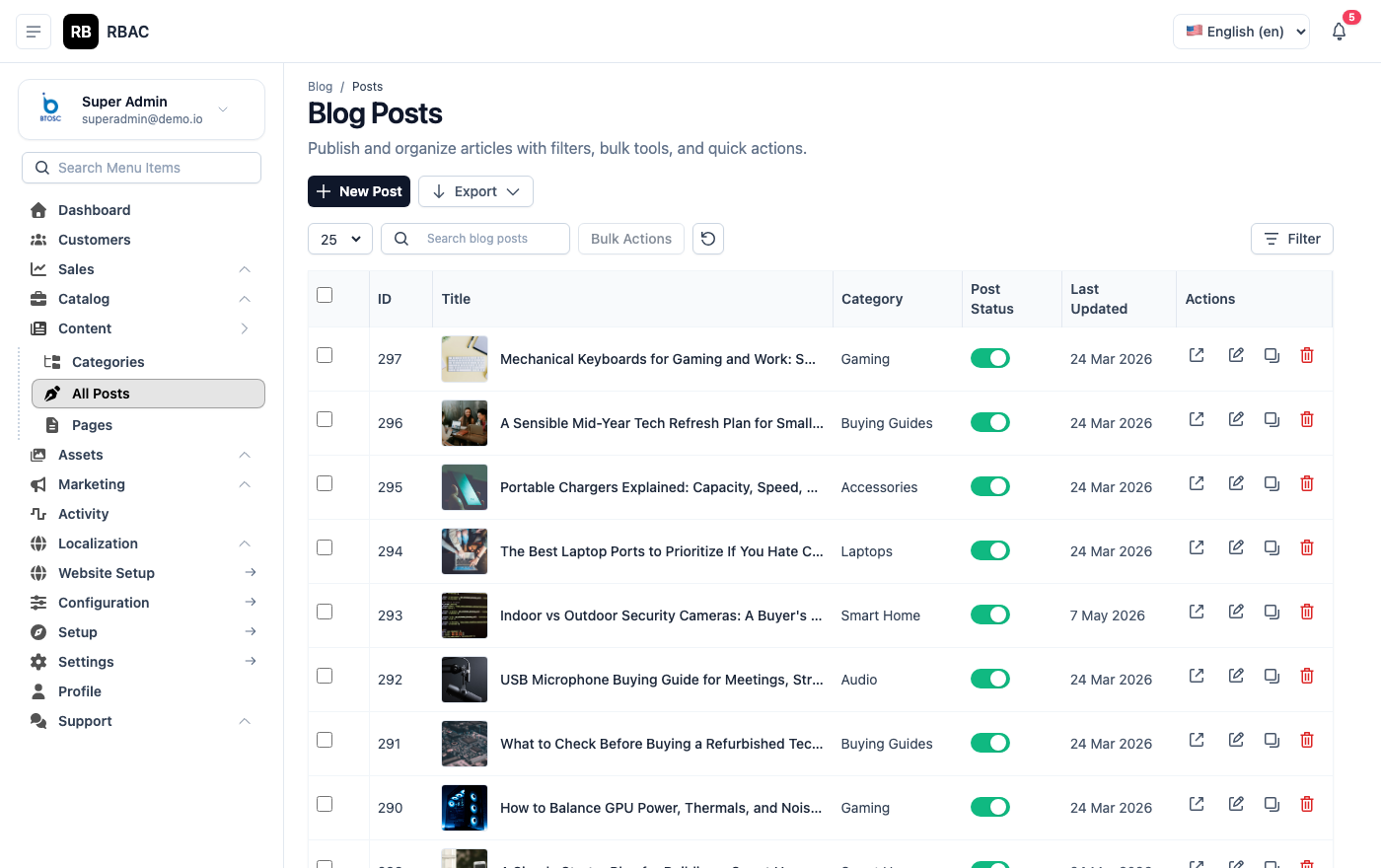 Blog Posts list showing titles, categories, authors, publish dates, and status badges
Blog Posts
Viewing Posts
Go to Blog → Posts. The list shows all posts with the following columns:
| Column | Description |
|---|---|
| Title | The post headline. Click to open the post in edit mode. |
| Category | The blog category this post belongs to |
| Author | Admin user who created or last updated the post |
| Publish Date | The date the post was or will be published |
| Status | Published, Draft, or Scheduled badge |
| Actions | Edit and Delete icon buttons |
Use the search bar to find posts by title. Filter by status (Published / Draft / Scheduled) or category using the dropdown filters above the list.
Creating a Post
- Go to Blog → Posts.
- Click Add New (top-right corner).
- Fill in all relevant fields:
| Field | Required | Description |
|---|---|---|
| Title | Yes | The post headline. Write it to be compelling and include the primary keyword. Aim for 50–60 characters for optimal display in search results. |
| Slug | Yes | URL segment auto-generated from the title. Lowercase, hyphen-separated, no special characters (e.g., how-to-choose-running-shoes). |
| Category | No | Blog category for this post. Assign each post to one category. |
| Tags | No | Comma-separated keywords (e.g., running, fitness, footwear). Tags appear below the post and can link to tag archive pages. |
| Content | Yes | Body of the post, written in the rich-text editor. See the editor features section below. |
| Excerpt | No | A 1–3 sentence summary shown on the blog listing page and in social/email previews. If left blank, SnapCart auto-generates an excerpt from the first paragraph. |
| Featured Image | No | The main image displayed at the top of the post and as the thumbnail on the listing page. See image guidelines below. |
| Status | Yes | Published (live immediately), Draft (not visible on storefront), or Scheduled (goes live on the specified date). |
| Publish Date | Conditional | Required if Status is Scheduled. Set the future date and time when the post should go live. |
| Meta Title | No | SEO title tag for the post page. Defaults to the post Title if left blank. Aim for 50–60 characters. |
| Meta Description | No | SEO description tag. Aim for 150–160 characters. Summarise the post's value and include the primary keyword. |
- Click Save.
Scheduling Posts
To publish a post at a future date and time:
- Set Status to Scheduled.
- In the Publish Date field, select the date and time (in your server's timezone, as shown in Settings → General → Timezone).
- Click Save.
The post is saved with Scheduled status and will not be visible on the storefront until the publish date is reached. The SnapCart scheduler checks for due posts at regular intervals (typically every minute). Once published, the status automatically changes to Published.
To cancel a scheduled post, change its status back to Draft and save.
Editing and Deleting
- Edit: Click the edit icon on any post in the list. All fields can be updated, including the status. Changes to a Published post go live immediately.
- Delete: Click the delete icon. Permanently removes the post. The post URL returns a 404 on the storefront. If the post had inbound links from other sites, consider replacing it with a "redirected" or archived version rather than deleting.
Featured Image Guidelines
The featured image represents the post across multiple contexts — the post detail page, the blog listing page, social media sharing cards, and email newsletters.
| Context | Recommended Size | Notes |
|---|---|---|
| Blog post header | 1200 × 628 px | Displayed at full width at the top of the post |
| Blog listing thumbnail | 400 × 210 px | Cropped from the featured image automatically |
| Social sharing (Open Graph) | 1200 × 628 px | The 1.91:1 ratio is the Open Graph standard — Facebook, LinkedIn, and Twitter/X use this ratio for link previews |
| Email newsletter | 600 × 314 px | If you embed blog post links in newsletters, the image is scaled to fit |
Use high-quality, original images or properly licensed stock photos. Avoid text-heavy images that become illegible at thumbnail sizes. Upload the featured image at 1200 × 628 px — the system scales it down for smaller contexts.
Rich-Text Editor Features
The blog editor supports all standard formatting needed for professional articles:
| Feature | Description |
|---|---|
| Headings | H1–H6 for content structure. Use H2 for main sections, H3 for sub-sections. |
| Bold / Italic / Underline | Inline emphasis |
| Strikethrough | For corrections or crossed-out content |
| Bulleted list | Unordered list |
| Numbered list | Ordered list for step-by-step instructions |
| Blockquote | Highlighted quotation block — useful for pull quotes |
| Code block | Monospace block for technical content |
| Embedded images | Insert images from the Gallery picker inline within the content |
| Hyperlinks | Insert links to internal pages, products, or external sources |
| Tables | Structured tabular data |
| Horizontal rule | Section divider |
Inserting images into the post body
- Position the cursor in the editor where the image should appear.
- Click the Image button in the toolbar.
- The Gallery picker opens — select an existing image or upload a new one.
- Click Confirm. The image appears inline.
- Click the image to access alignment controls (left, centre, right) and a resize handle.
Add descriptive alt text to every image. Alt text is read by screen readers and indexed by search engines for image search visibility. Right-click the embedded image and select Edit image to enter alt text.
Tags vs Categories
Tags and categories both organise blog content, but they serve different purposes:
| Category | Tag | |
|---|---|---|
| Structure | Hierarchical (supports parent categories) | Flat list |
| Granularity | Broad topic grouping | Specific keyword or theme |
| Posts per item | Many posts per category | Few posts per tag (often) |
| Use case | Navigation (Blog → Recipes, Blog → News) | Discovery and related-content linking |
| Example | "Footwear Guides" | "running", "trail", "marathon" |
Assign each post to one category and add 3–7 tags. Avoid over-tagging (a tag used by only one post provides no organisational value).
Blog Categories
Blog categories help customers navigate your content by topic.
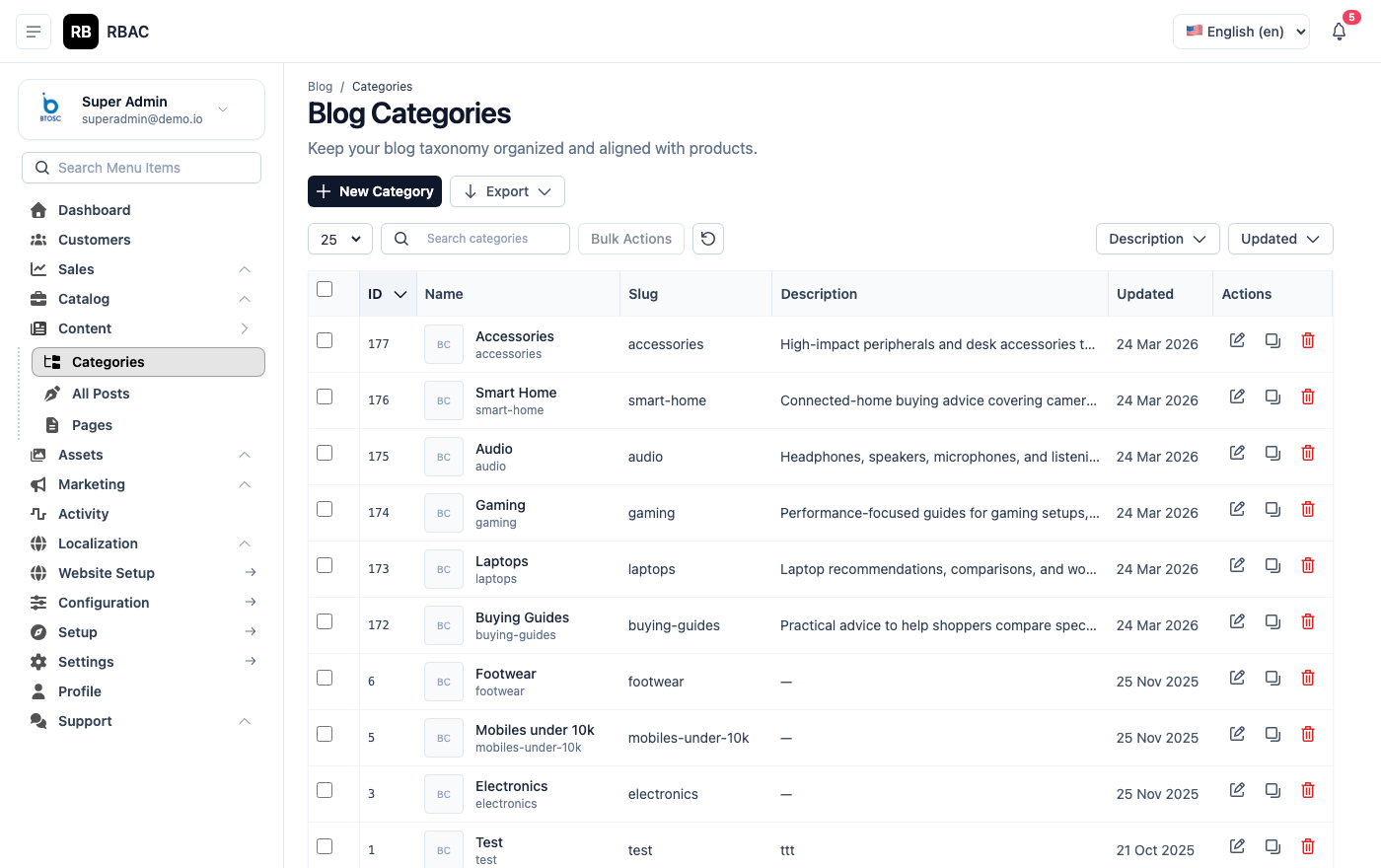 Blog Categories list showing category names, slugs, and post counts
Managing Categories
Go to Blog → Categories.
The list shows all blog categories with name, slug, parent category, and post count.
Adding a Category
- Click Add New.
- Fill in the form:
| Field | Required | Description |
|---|---|---|
| Name | Yes | Category display name (e.g., "Style Guides", "Product News"). |
| Slug | Yes | URL-friendly identifier auto-generated from the name. |
| Description | No | Optional description shown on the category archive page. |
| Parent Category | No | Select a parent to create a nested category hierarchy. Supports up to 2 levels (parent → child). |
- Click Save.
Category Hierarchy
Blog categories support one level of nesting (parent → child). Use this sparingly — a flat category structure is easier to navigate for both visitors and search engines.
Example structure:
Style Guides               (parent)
├── Seasonal Lookbooks     (child)
└── How-To Articles        (child)
Product News               (parent)
Store Updates              (parent)
SEO Checklist for Blog Posts
Well-optimised blog posts can drive significant organic traffic. Follow this checklist for each post:
- Title includes the primary keyword near the beginning (e.g., "Running Shoe Size Guide: How to Find Your Perfect Fit")
- Slug matches the primary keyword and is concise (e.g.,
running-shoe-size-guide) - Meta Title is unique, 50–60 characters, includes the keyword
- Meta Description is unique, 150–160 characters, includes a call-to-action
- Primary keyword appears in the first paragraph of the content
- H2/H3 headings are used to structure sections and include secondary keywords naturally
- Featured image is uploaded at 1200 × 628 px with a descriptive file name (e.g.,
running-shoe-size-guide.jpg) - Images have alt text that describes the image content
- Internal links to related blog posts and product pages are included
- Excerpt is written manually (do not rely on auto-generation for important posts)
- At least 600 words of original, useful content (aim for 1,000–1,500 for competitive topics)
- Post is proofread before publishing
Best Practices for Driving Traffic
A blog is only valuable if it attracts and retains readers. Follow these practices to build an effective content strategy:
Publish consistently. A regular publishing cadence (e.g., 2 posts per week) signals freshness to search engines and gives subscribers a reason to return. Irregular bursts of posts followed by long silences are less effective.
Target informational keywords. Blog posts rank best for "how to", "what is", "best X for Y" style queries. Use a keyword research tool to identify what potential customers are searching for.
Write for your customers, not just for search engines. Posts that genuinely help customers (buying guides, care instructions, comparison articles) generate more shares and return visits than thin keyword-stuffed content.
Interlink with product pages. Where relevant, link blog content to the products you sell. A post titled "How to Choose a Running Shoe" should link to your running shoe category or specific product pages.
Promote posts on social media. After publishing, share the post link on your social channels. The featured image dimensions (1200 × 628 px) are optimised for link previews on Facebook and LinkedIn.
Update old posts. Refreshing outdated posts with current information and re-publishing them with an updated date is often more effective than writing new content from scratch for established posts.
Troubleshooting
A scheduled post did not publish at the expected time. Check that the server's cron job or task scheduler is running. The SnapCart scheduler requires a background job that runs at regular intervals. Refer to the deployment documentation for cron job setup. Also confirm the Timezone setting in Settings → General matches your expectation — the publish date is interpreted in the server's configured timezone.
The blog listing page shows no posts even though posts are Published. Verify that the blog listing route is enabled. Check Settings → General → Blog to ensure the blog feature is active. Also confirm that the published posts are assigned to Active categories if the listing is filtered by category.
Images in the post body appear broken after saving. If you embedded an image URL manually (typed the URL rather than using the Gallery picker), the URL may be incorrect or the file may not exist. Use the Gallery picker to insert images to avoid path issues.