Coupons & Flash Deals
SnapCart provides two complementary discount mechanisms — Coupon Codes that customers enter manually at checkout, and Flash Deals that automatically apply discounted pricing to selected products for a limited time.
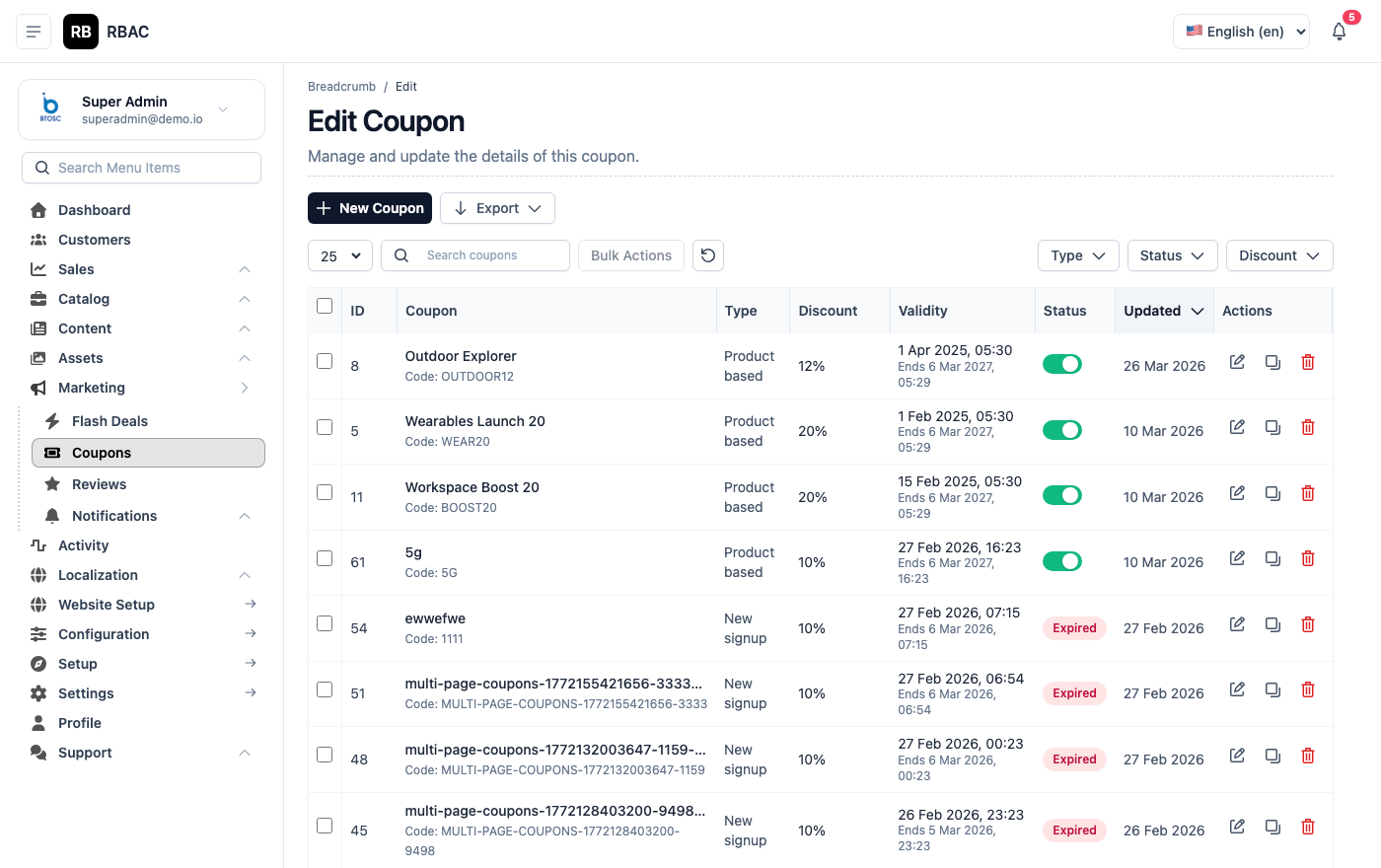 Coupons list showing code, type, discount value, usage count, and validity dates
Accessing Coupons
Click Coupons in the left sidebar. The page has two tabs: Coupons and Flash Deals.
:::info Permissions required
| Action | Permission |
|---|---|
| View coupons | coupon.view |
| Create coupons | coupon.create |
| Edit coupons | coupon.edit |
| Delete coupons | coupon.delete |
| ::: |
Coupon Codes
Coupon Types
| Type | How It Works | Example |
|---|---|---|
| Percentage | Deducts a percentage of the cart subtotal | SAVE20 → 20% off |
| Fixed Amount | Deducts a specific amount from the cart subtotal | FLAT100 → ₹100 off |
| Free Shipping | Waives the shipping charge entirely | FREESHIP → ₹0 shipping |
Creating a Coupon
Click Add New under the Coupons tab.
Create Coupon form showing all configuration fields including type, value, usage limits, and validity dates
| Field | Required | Description |
|---|---|---|
| Coupon Code | ✅ | The code customers enter at checkout. Use uppercase letters and numbers for readability (e.g., SUMMER25, FLAT200) |
| Discount Type | ✅ | Percentage, Fixed Amount, or Free Shipping |
| Discount Value | ✅ | The percentage or fixed amount. Not required for Free Shipping type |
| Minimum Order Amount | — | The cart subtotal must be at least this amount for the coupon to apply |
| Maximum Discount | — | For percentage coupons, caps the maximum deduction (e.g., max ₹500 off for a 20% coupon) |
| Usage Limit (Total) | — | Maximum number of times this coupon can be used across all customers. Leave blank for unlimited |
| Usage Per Customer | — | Maximum uses per individual customer account |
| Valid From | — | Date from which the coupon becomes active |
| Valid Until | — | Expiry date after which the coupon no longer works |
| Status | ✅ | Active or Inactive |
| Applicable Products | — | Restrict to specific products (leave blank to apply to all products) |
| Applicable Categories | — | Restrict to specific categories |
Click Save to create the coupon.
:::tip Coupon code conventions
- Use all-uppercase codes:
WELCOME10,DIWALI50 - Keep codes short and memorable (6–10 characters)
- Avoid ambiguous characters like
0(zero) andO(letter O), or1andl - Include the discount in the code name so customers know what to expect:
FLAT200,20PERCENT:::
Testing a Coupon
Before announcing a coupon:
- Log in to the storefront as a test customer
- Add products meeting the minimum order amount
- Enter the coupon code at checkout
- Verify the correct discount is applied
- Complete the test order and verify the coupon usage count increments
Editing a Coupon
Click the edit icon on any coupon. All fields are editable, including the validity dates — useful for extending a promotion.
Deactivating vs Deleting
- Deactivate (set Status to Inactive) — The coupon is disabled but preserved. Reactivate later if needed.
- Delete — Permanently removes the coupon. Historical usage data in existing orders is not affected.
Viewing Coupon Usage History
Click a coupon's code to open its detail view, which includes a table of all orders this coupon was applied to:
| Column | Description |
|---|---|
| Order # | Linked order number |
| Customer | Who used the coupon |
| Discount Applied | Amount deducted |
| Date Used | When the order was placed |
This is useful for analysing which coupons are most popular and calculating the total discount liability.
Flash Deals
Flash Deals are time-limited sales applied directly to product prices — no coupon code required. The discounted price and a countdown timer appear automatically on the product page.
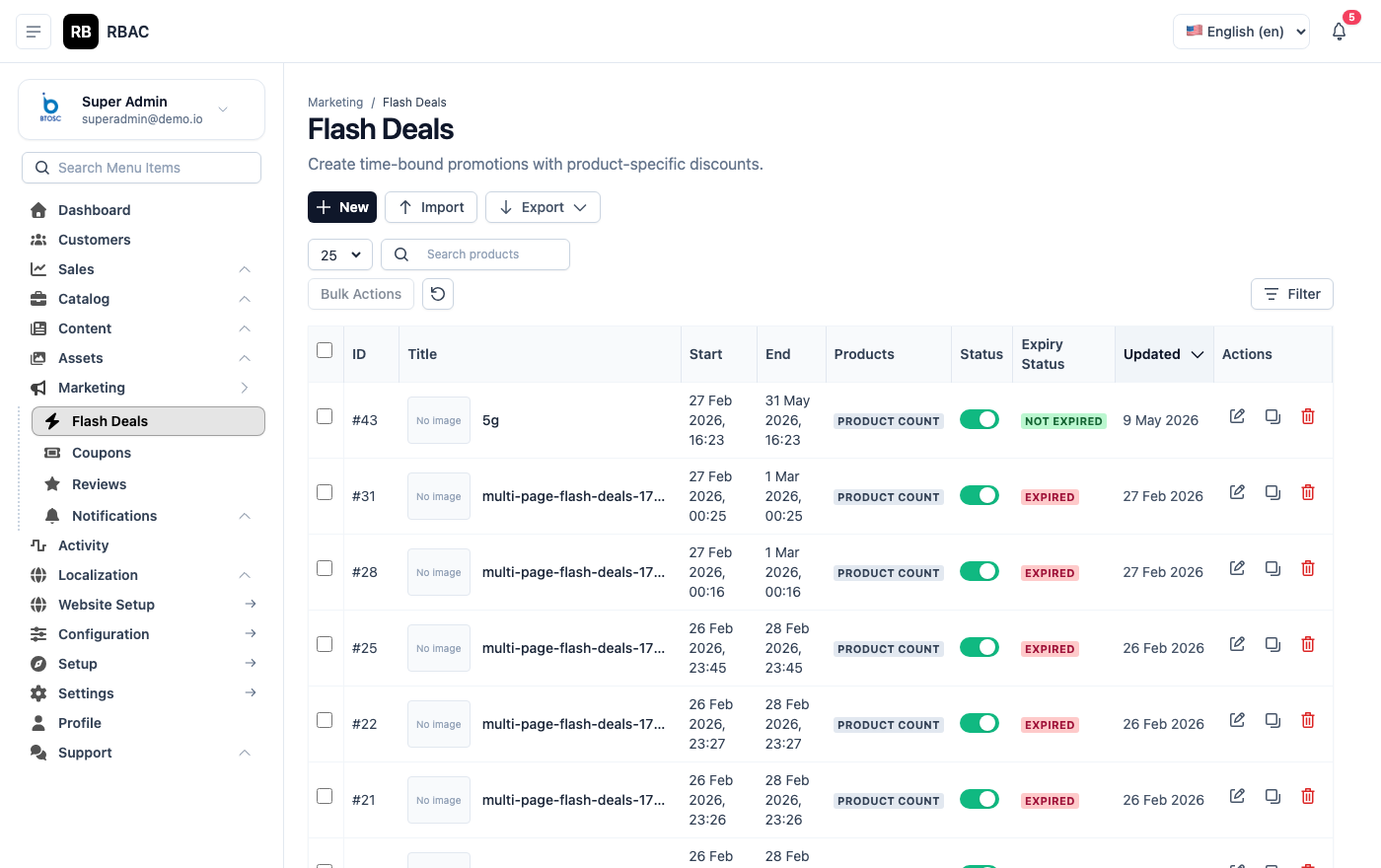 Flash Deals list showing deal title, start/end times, discount, and participating products
Creating a Flash Deal
- Click the Flash Deals tab.
- Click Add New Flash Deal.
Flash Deal creation form showing title, date range, discount type, and product selector
| Field | Required | Description |
|---|---|---|
| Title | ✅ | Internal deal name (e.g., "Diwali Sale", "Weekend Blowout") |
| Start Date & Time | ✅ | Exact moment the deal begins |
| End Date & Time | ✅ | Exact moment the deal ends |
| Discount Type | ✅ | Percentage or Fixed Amount |
| Discount Value | ✅ | Amount deducted from the regular price |
| Products | ✅ | Select which products are part of this flash deal |
| Status | ✅ | Active or Inactive |
- Click Save.
How Flash Deals Appear to Customers
Product page showing the flash deal price, original price with strikethrough, and countdown timer
When a flash deal is active:
- The product listing card shows the discounted price with the original price struck through
- A countdown timer appears on the product detail page showing time remaining
- A "Flash Deal" badge appears on the product thumbnail in category listings
- The discount is automatically applied when the customer adds the item to cart
When the flash deal expires:
- The product reverts to its regular price automatically
- The countdown timer and badge disappear
- No admin action is required
Flash Deal vs Coupon — When to Use Which
| Use Case | Flash Deal | Coupon Code |
|---|---|---|
| Limited-time sale on specific products | ✅ Best | — |
| Sitewide percentage discount | — | ✅ Best |
| Reward for loyal customers | — | ✅ Best (share privately) |
| Holiday sale visible to all | ✅ Best | ✅ Also works |
| Minimum purchase requirement | — | ✅ Supports this |
| One-time-use code | — | ✅ Use Per Customer = 1 |
Best Practices
Preventing Coupon Abuse
- Set Usage Per Customer = 1 for new-customer welcome discounts
- Set Minimum Order Amount to ensure discounts are only applied to meaningful purchases
- Set short Valid Until dates and deactivate immediately after the promotion ends
- Never share coupon codes publicly if they have no usage limit
Flash Deal Timing
- Schedule flash deals to start at a specific time (e.g., midnight or 9am) for maximum impact
- Shorter deals (24–48 hours) create more urgency than week-long deals
- Announce flash deals via the Notifications → Broadcast feature before they go live
Measuring Discount Impact
After a promotion ends:
- Go to the coupon detail to see total usage and discount value given
- Compare order volume during the promotion period using the Dashboard revenue chart
- Calculate net revenue (gross revenue minus discounts) to assess profitability