Customers
The Customers section gives you a complete view of everyone who has registered an account on your storefront. You can browse customer profiles, view their order history, manage their addresses, and control account access.
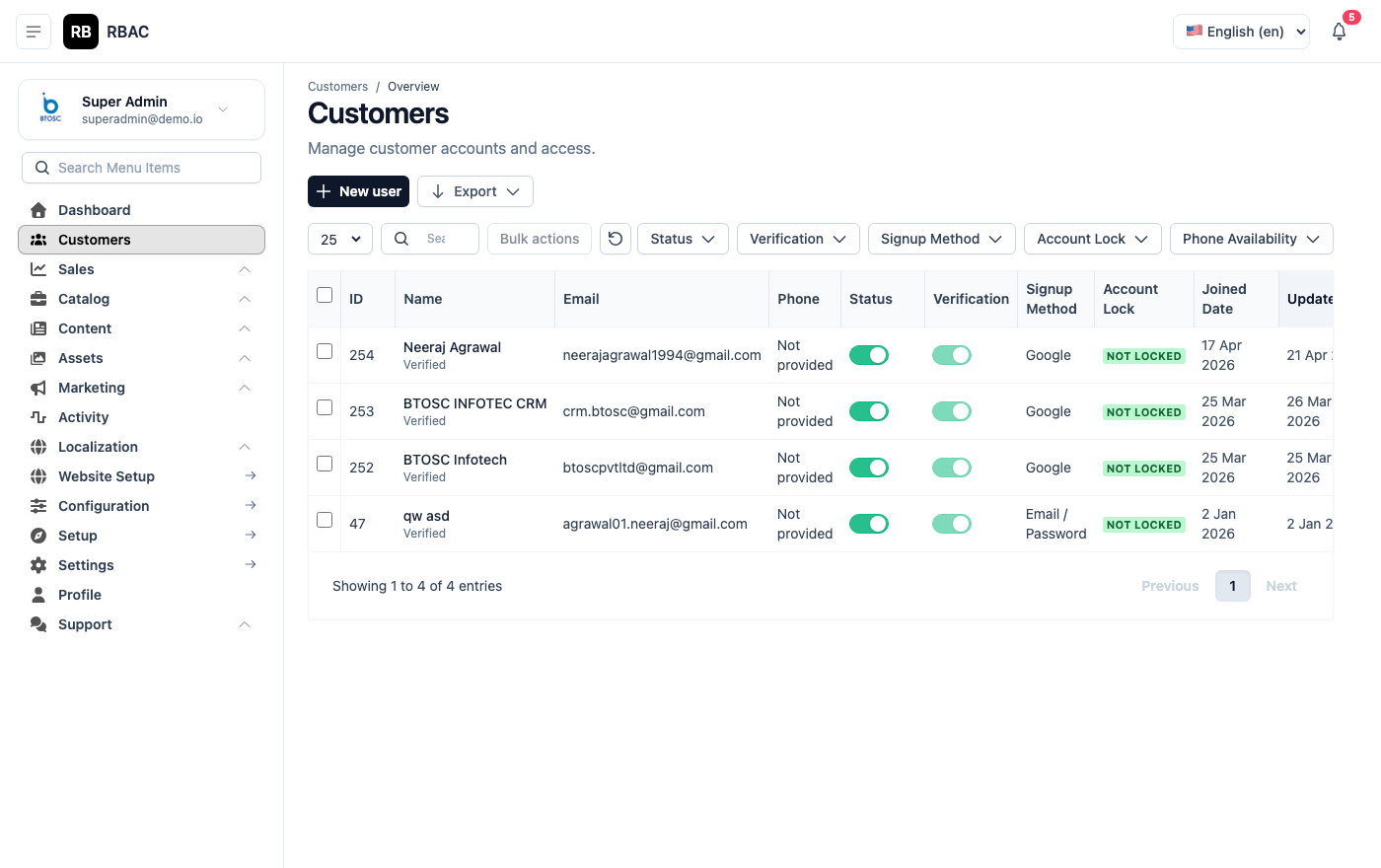 Customer list showing name, email, total orders, lifetime spend, and registration date
Accessing Customers
Click Customers in the left sidebar.
:::info Permissions required
| Action | Permission |
|---|---|
| View customers | customer.view |
| Edit customer details | customer.edit |
| Delete customer accounts | customer.delete |
| ::: |
Customer List
Columns
| Column | Description |
|---|---|
| Name | Customer's full name |
| Registered email address | |
| Phone | Phone number (if provided during registration) |
| Total Orders | Total number of orders placed |
| Total Spent | Lifetime gross spend (all orders, all statuses) |
| Registered | Account registration date |
| Status | Active or Banned |
| Actions | View Profile, Edit, Delete |
Searching and Filtering
Customer list filter bar showing search input and status filter
| Filter | Options |
|---|---|
| Search | Customer name or email address |
| Status | All, Active, Banned |
| Date Registered | Custom date range |
Customer Profile
Click View on any customer to open their full profile.
Customer profile page showing personal details, order history, and address book
Personal Details
| Field | Description |
|---|---|
| First Name | — |
| Last Name | — |
| Login email address | |
| Phone | Contact number |
| Date of Birth | (if provided at registration) |
| Gender | (if provided) |
| Registration Date | When the account was created |
| Last Login | Most recent login timestamp |
| Account Status | Active or Banned |
Order History
A chronological list of all orders placed by this customer.
Order history tab inside a customer profile showing order number, date, total, and status
| Column | Description |
|---|---|
| Order # | Click to open the full order detail |
| Date | Order placement date |
| Items | Number of items |
| Total | Grand total |
| Status | Current order status |
Click View Order to navigate to the full order detail in the Orders section.
Address Book
All delivery and billing addresses saved by this customer.
Customer address book showing saved addresses with default billing and shipping badges
You can:
- Add a new address on behalf of the customer
- Edit an existing address
- Set as Default Shipping or Default Billing
- Delete an address
Addresses added or edited here are immediately available to the customer in their checkout flow.
Account Activity
A log of the customer's recent activity including logins, password changes, and profile updates.
Editing a Customer
Click Edit on a customer's profile to update:
| Field | Editable |
|---|---|
| First Name | ✅ |
| Last Name | ✅ |
| ✅ | |
| Phone | ✅ |
| Account Status | ✅ (Active / Banned) |
| Password | ❌ (customers manage their own passwords — use Send Reset Email instead) |
Click Save after making changes.
Banning a Customer
Set a customer's Status to Banned to prevent them from logging into the storefront and placing new orders.
Confirmation dialog when changing a customer's status to Banned
What happens when a customer is banned:
- They cannot log in to the storefront
- Existing orders are not affected and continue to be processed normally
- They remain in your customer database and their order history is preserved
- You can unban them at any time by setting their status back to Active
When to use this:
- Fraudulent orders or chargebacks
- Repeated abusive behaviour
- Violation of your terms of service
Sending a Password Reset Email
If a customer is locked out of their account and cannot use the forgot password flow:
- Open the customer profile.
- Click Send Password Reset Email.
- SnapCart sends a password reset link to the customer's registered email.
:::info SMTP required Password reset emails only send if SMTP is correctly configured under Settings → Email. :::
Deleting a Customer
Click Delete on a customer profile. This is a permanent, irreversible action.
What is deleted:
- Customer account and login credentials
- Saved addresses
- Wishlist
What is preserved:
- All order records (order history is retained for accounting and fulfilment, but the customer reference is anonymised)
:::danger Use with caution Delete customer accounts only when required for compliance (e.g., a GDPR right-to-erasure request). For inactive or problematic customers, banning is safer. :::
Exporting Customer Data
- Click Export at the top of the Customer list.
- A CSV file downloads containing all matching customers.
The export includes: name, email, phone, registration date, total orders, total spent, and account status.
This export is useful for email marketing campaigns, CRM imports, or customer analysis.