Localization
The Localization section lets you configure the languages and currencies supported by your store, and manage the translation strings used across the storefront and admin panel. Go to Localization in the left sidebar.
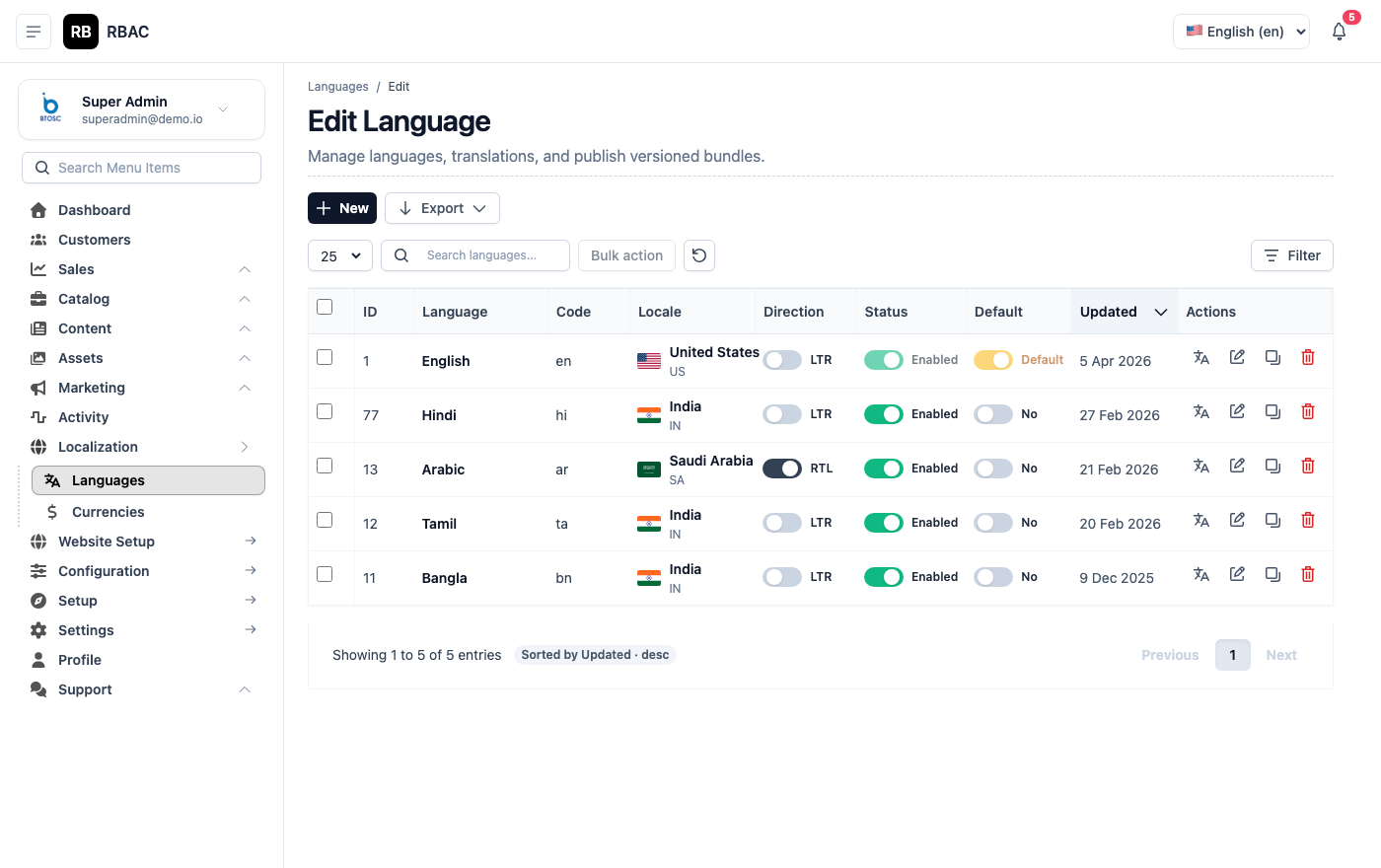 Languages list showing configured languages with their locale codes and status
Languages
SnapCart supports multiple languages using i18next on the frontend and ICU4J on the backend for message formatting.
Adding a Language
- Go to Localization → Languages.
- Click Add Language.
- Select the language from the dropdown (e.g., Hindi, French, Arabic).
- Set its Status to Active.
- Click Save.
The language immediately appears in the storefront language switcher.
Setting the Default Language
The default language is set in Settings → General → Default Language. Customers who haven't set a preference see the store in this language.
Translations
Go to Localization → Translations to edit the string keys for each language:
- Select a language from the dropdown.
- Browse or search for a translation key.
- Enter the translated value.
- Click Save.
Translation strings are grouped by module (Common, Product, Order, Auth, etc.).
SnapCart ships with English translations for all keys. Other languages start with English fallback values — translate the keys that matter most to your audience first.
RTL Support
Languages like Arabic and Hebrew that use right-to-left (RTL) text direction are supported. Mark a language as RTL when adding it — the storefront layout mirrors automatically.
Currencies
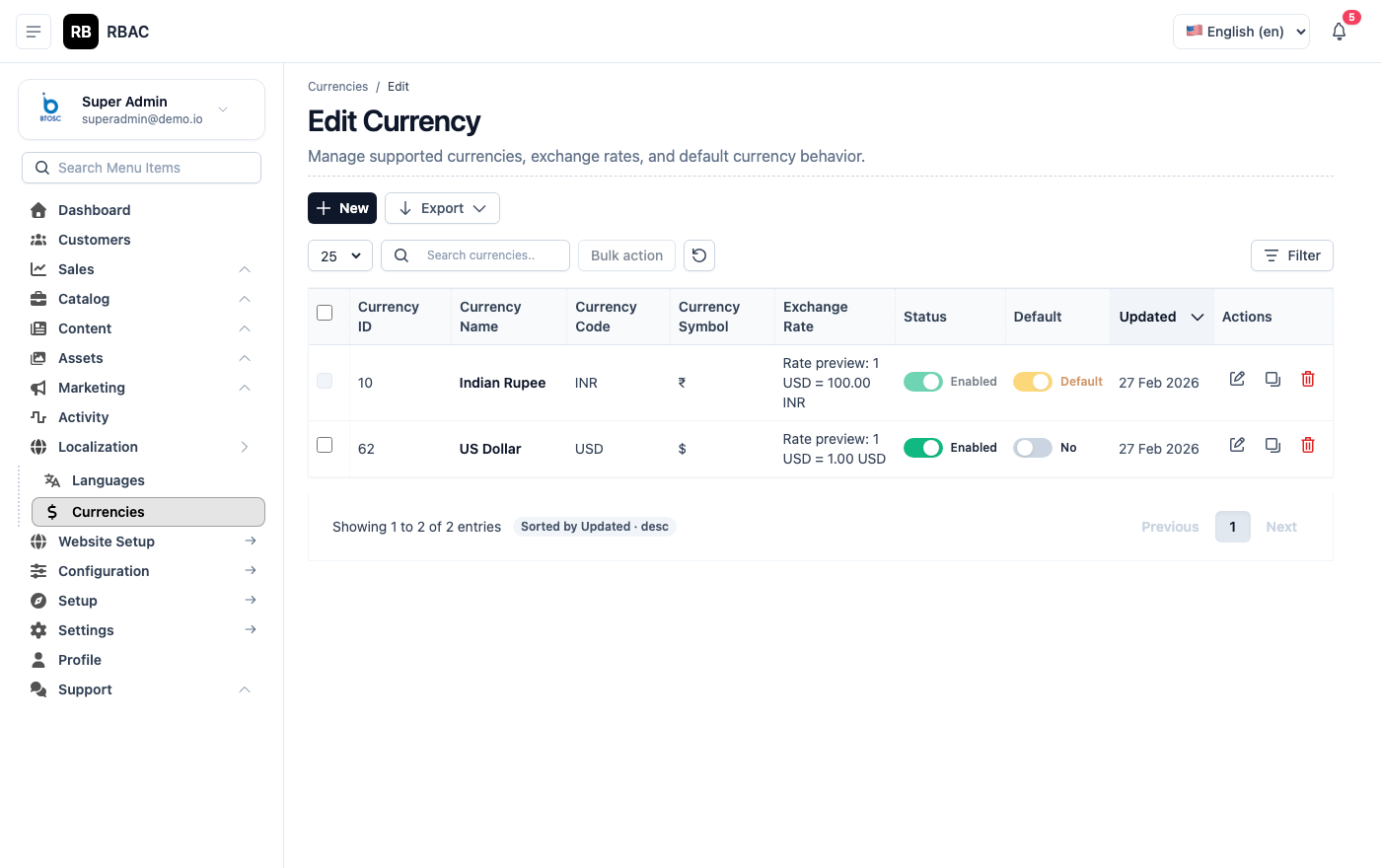 Currencies list showing currency names, ISO codes, symbols, and exchange rates
Adding a Currency
- Go to Localization → Currencies.
- Click Add Currency.
- Fill in:
| Field | Description |
|---|---|
| Name | Currency name (e.g., "Indian Rupee") |
| Code | ISO 4217 code (e.g., INR, USD, EUR) |
| Symbol | Display symbol (e.g., ₹, $, €) |
| Exchange Rate | Rate relative to your base currency |
| Position | Symbol before or after the amount |
| Decimal Places | Number of decimal places (typically 2) |
| Status | Active or Inactive |
- Click Save.
Setting the Default Currency
Go to Settings → General → Default Currency and select your primary currency. This is the currency in which products are priced and orders are recorded.
Currency Switcher
When multiple currencies are active, customers see a currency switcher on the storefront. Prices are converted using the exchange rates you configure. Payment gateways always charge in the currency selected at checkout.
Update exchange rates regularly if you operate in multiple currencies. Stale rates can lead to pricing discrepancies. Consider updating rates at least weekly if your store serves international customers. You can automate this using the Currency API endpoint if you have access to a live exchange rate data source.
Editing a Currency
- In the Currencies list, click the edit icon next to the currency.
- Update any field (Name, Symbol, Exchange Rate, Position, Decimal Places, or Status).
- Click Save.
Changing the exchange rate takes effect immediately for all new storefront sessions. Existing cart sessions that have already calculated prices may need to be refreshed. Orders already placed are stored with the amount at the time of checkout and are not retroactively recalculated.
Deactivating a Currency
Set a currency's Status to Inactive to hide it from the storefront currency switcher. Inactive currencies are not deleted and can be reactivated at any time. Existing orders denominated in that currency are unaffected.
Translations
The Translations section allows you to customise every text string displayed on the storefront for each active language.
Accessing Translations
Go to Localization → Translations.
- Select a Language from the dropdown.
- Browse or search for a translation Key — keys are grouped by module (Common, Product, Order, Auth, Checkout, etc.).
- The Original (English) column shows the default English text.
- The Translation column shows the current value for the selected language.
- Click the edit icon on any row, enter the translated text, and click Save.
Translation Key Structure
Translation keys follow a dot-notation hierarchy, for example:
common.button.save→ "Save"product.detail.add_to_cart→ "Add to Cart"order.status.shipped→ "Shipped"auth.login.forgot_password→ "Forgot Password?"
Workflow for Adding a New Language
- Add the language under Localization → Languages (see above).
- Go to Translations and select the new language.
- All keys default to their English values initially — these serve as placeholders.
- Work through the modules systematically, prioritising high-visibility strings first:
common.*— buttons, labels, and navigation elements used across all pagesproduct.*— product listing and detail page textcheckout.*— checkout flow strings (critical for conversion)auth.*— login, registration, and password reset messagesorder.*— order status labels and confirmation messages
- Test the language by switching to it on the storefront (via the language switcher) and reviewing each key page.
:::info Incomplete translations fall back to English If a translation key has no value set for a language, the storefront displays the English fallback text. This means you can launch with a partially translated site and fill in remaining strings over time without breaking the customer experience. :::
Troubleshooting
The language switcher is not showing on the storefront. Confirm that at least two languages have Status: Active. The switcher only appears when multiple active languages are configured. Also check Settings → Homepage Sections to ensure the language switcher widget is not disabled.
Exchange rates are not updating product prices. Prices are stored in your base currency (set in Settings → General → Default Currency). When a customer switches currency, prices are converted in real time using the stored exchange rate. If prices appear unchanged, clear your browser cache or check that the currency's exchange rate has been saved correctly.
A translated string is still showing in English. Ensure the translated value has been saved (click Save after each edit). If the translation was recently saved, try a hard refresh (Ctrl+Shift+R or Cmd+Shift+R) to clear the browser's cached JavaScript translation bundle.