Notifications
The Notifications section controls all automated emails sent by your store and lets you send manual broadcast messages to your customer base. Go to Notifications in the left sidebar.
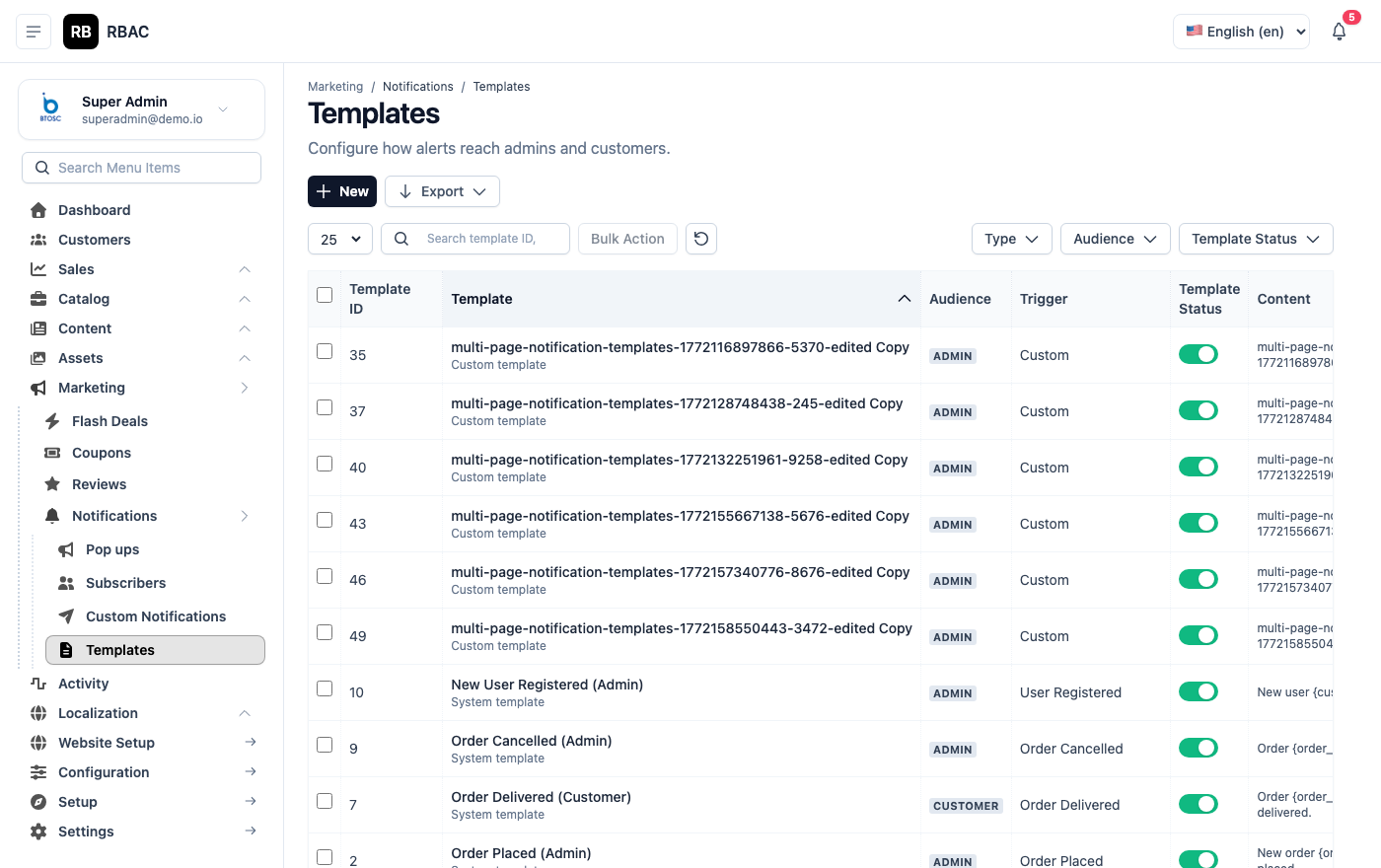 Notifications page showing the Templates tab and Broadcast tab
:::info SMTP is required All notifications — both automated and broadcast — require a working SMTP configuration. Configure it under Settings → Email before using this section. :::
Notification Templates
Templates define the subject line and HTML body of every automated email your store sends. Each template corresponds to a specific trigger event.
Viewing Templates
Go to Notifications → Templates. The list shows all templates with their event name, subject line, and last modified date.
Template list showing all automated email templates with event names and status indicators
Available Templates
| Template | Recipient | Trigger |
|---|---|---|
| Order Placed | Customer | Immediately when an order is placed |
| Order Status Updated | Customer | Every time an admin changes the order status |
| Order Shipped | Customer | When status changes to Shipped (includes tracking info) |
| Order Delivered | Customer | When status changes to Delivered |
| Order Cancelled | Customer | When status changes to Cancelled |
| Order Refunded | Customer | When status changes to Refunded |
| Payment Success | Customer | When payment is confirmed |
| Payment Failed | Customer | When a payment attempt fails |
| Email Verification | Customer | On new account registration (includes verification link) |
| Password Reset OTP | Customer | When a customer requests a password reset |
| New Order Alert | Admin | When any new order is placed (sent to store contact email) |
| Low Stock Alert | Admin | When a product's stock falls below threshold |
Editing a Template
- Click Edit on any template.
Template editor showing the Subject and HTML Body fields with the placeholder reference panel
- Edit the Subject line.
- Edit the HTML Body — the rich-text editor supports HTML formatting.
- Use the Placeholder Reference panel on the right to insert dynamic values.
- Click Preview to see a rendered preview with sample data.
- Click Save.
Available Placeholders
| Placeholder | Replaced With |
|---|---|
{{customer_name}} | Customer's full name |
{{customer_email}} | Customer's email address |
{{order_number}} | Order number (e.g., #1042) |
{{order_total}} | Formatted grand total (e.g., ₹1,299.00) |
{{order_status}} | Current status label (e.g., "Shipped") |
{{order_date}} | Date the order was placed |
{{order_items}} | HTML table of ordered products |
{{shipping_address}} | Formatted shipping address |
{{tracking_number}} | Shipment tracking number |
{{tracking_carrier}} | Shipping carrier name |
{{payment_method}} | Payment method used |
{{store_name}} | Your store name from Settings |
{{store_url}} | Your storefront URL |
{{store_logo}} | HTML img tag for your store logo |
{{reset_otp}} | Password reset OTP code |
{{verification_link}} | Email verification link |
{{product_name}} | For low stock alerts — product name |
{{current_stock}} | For low stock alerts — current quantity |
Testing a Template
After editing a template, click Send Test Email. SnapCart sends the template to your store's contact email address with sample placeholder data so you can verify formatting and content before it goes to real customers.
:::tip HTML email tips
- Use inline CSS styles for maximum email client compatibility (Outlook, Gmail, Apple Mail)
- Avoid external CSS files — they are stripped by most email clients
- Keep images hosted on your server or CDN — don't attach them
- Test rendered output in multiple email clients using a tool like Litmus or Email on Acid
- Keep a plain-text fallback version simple and readable :::
Broadcast Notifications
Broadcasts are one-time email messages you send manually to all customers or a filtered subset.
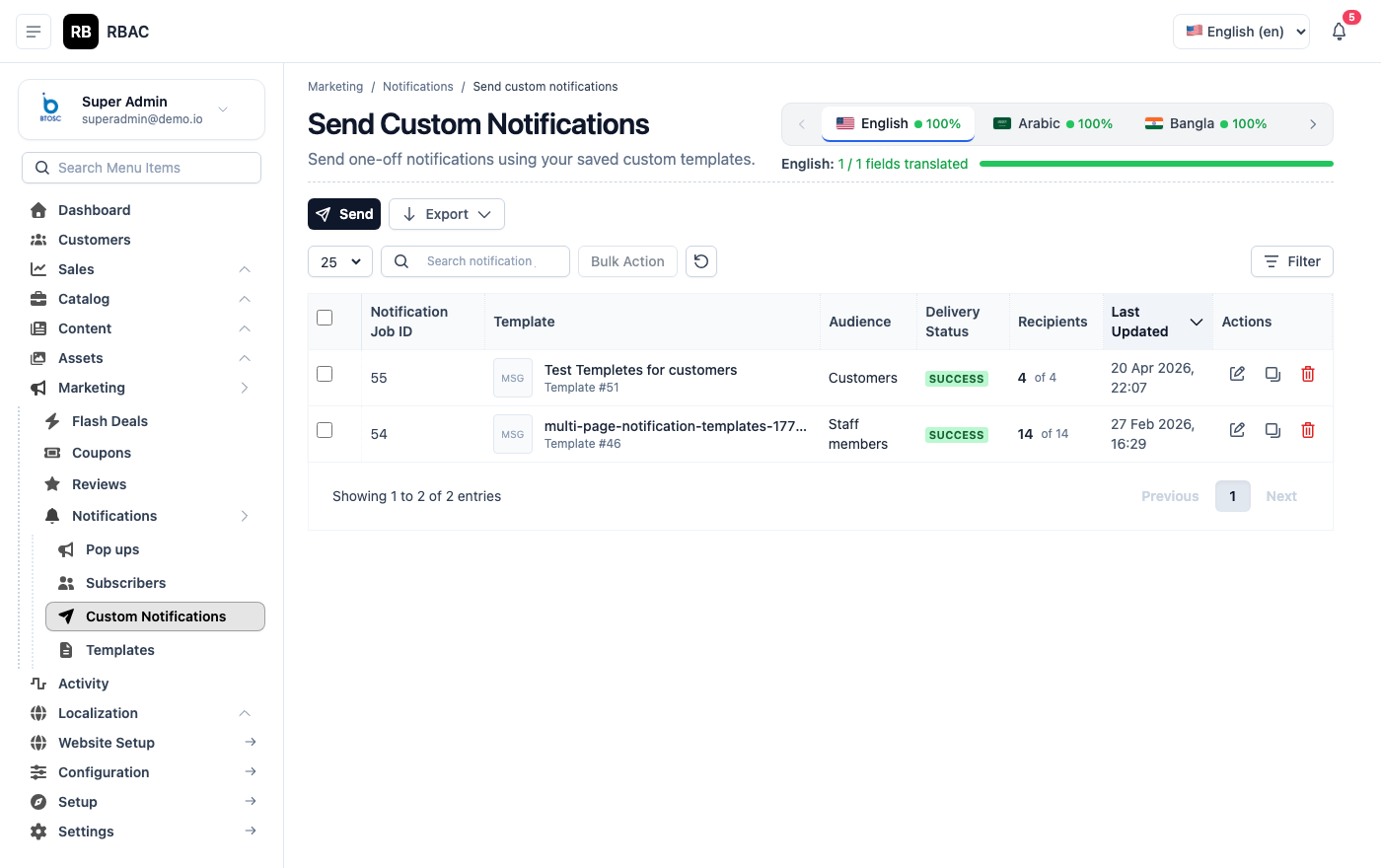 Broadcast compose screen with audience selector, subject field, and rich-text body editor
Creating a Broadcast
- Go to Notifications → Broadcast.
- Click New Broadcast.
- Configure the broadcast:
| Field | Description |
|---|---|
| Title | Internal reference name (not shown to customers) |
| Subject | Email subject line seen by recipients |
| Message | Email body — use the rich-text editor for formatting |
| Audience | All Customers, or filter by account status |
| Schedule | Send Now, or schedule for a specific date and time |
- Click Preview to see the rendered email.
- Click Send Now or Schedule.
Audience Filters
| Option | Who Receives the Email |
|---|---|
| All Customers | Every registered customer |
| Active Customers | Customers with Active account status |
| Customers with Orders | Customers who have placed at least one order |
| Customers without Orders | Registered but never purchased |
Broadcast History
The Broadcast History list shows all past broadcasts with:
| Column | Description |
|---|---|
| Title | Internal name |
| Subject | Email subject |
| Audience | Who it was sent to |
| Recipients | Number of emails sent |
| Sent At | Date and time sent |
| Status | Sent, Scheduled, or Failed |
Click any broadcast to view delivery statistics if your SMTP provider reports them.
:::caution No undo on broadcasts Once a broadcast is sent, it cannot be recalled. Always:
- Proofread the subject and message carefully
- Send a test email to yourself first
- Verify the audience filter is correct
- For large lists (1,000+ customers), schedule for off-peak hours to avoid SMTP rate limits :::
Notification Settings
Go to Settings → Notifications to configure global notification behaviour:
| Setting | Description |
|---|---|
| Notify Admin on New Order | Toggle the New Order Alert email to the store contact email on/off |
| Admin Notification Email | Override the email address that receives admin alerts (defaults to store contact email) |
| Low Stock Alert Email | Email address for low stock notifications |
Troubleshooting Notifications
Emails not being received
- Verify SMTP is configured correctly — go to Settings → Email and click Send Test Email
- Check the customer's spam/junk folder
- If using Gmail SMTP, ensure you're using an App Password (not your regular Gmail password)
- Check that the notification template is not set to Inactive
Emails going to spam
- Set up SPF and DKIM DNS records for your sending domain
- Use a dedicated sending email address (e.g.,
noreply@yourdomain.com) rather than a free Gmail/Yahoo address - Keep your email content free of spam trigger words (ALL CAPS, excessive exclamation marks, "free", "click here")
- Ensure your store domain has a valid SSL certificate
Template placeholders not resolving
- Verify you're using the exact placeholder format:
{{placeholder_name}} - Placeholders are case-sensitive
- Some placeholders are only available in specific templates (e.g.,
{{tracking_number}}only in the Order Shipped template)