Orders
The Orders section is the operational centre of your store. Every purchase placed by a customer appears here immediately. You can view order details, update fulfilment status, add tracking information, download invoices, and manage returns and refunds — all from one place.
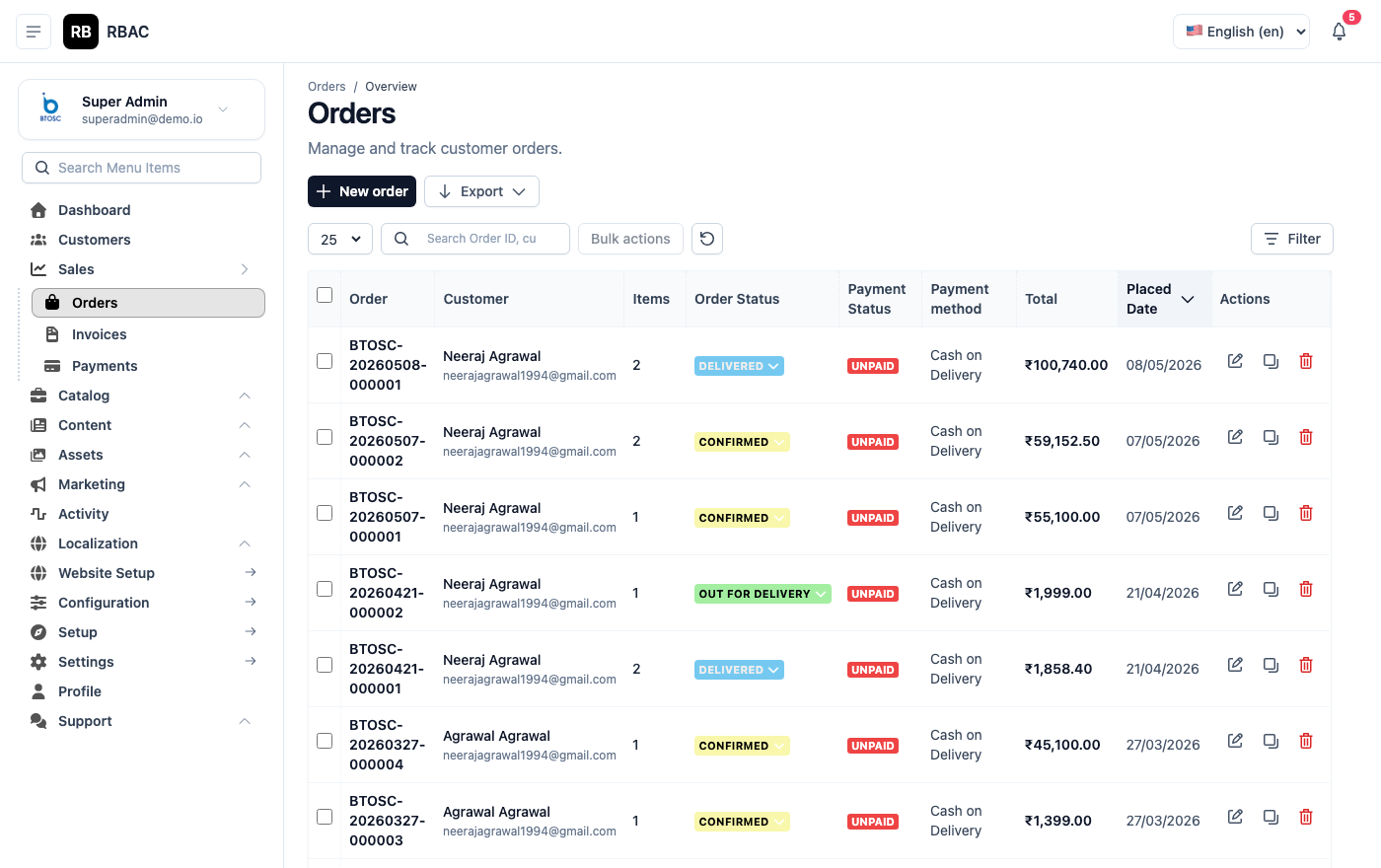 The Orders list showing order number, customer, total, payment status, fulfilment status, and date
Accessing Orders
Click Orders in the left sidebar. The page opens with a paginated list of all orders sorted by most recent first.
:::info Permission required
Users need the order.view permission to access the Orders section. Additional permissions (order.update, order.delete, order.invoice) control specific actions.
:::
Order List
Columns
| Column | Description |
|---|---|
| Order # | Unique auto-incremented order number |
| Customer | Full name and email address of the buyer |
| Items | Number of distinct products in the order |
| Total | Grand total charged including tax and shipping |
| Payment | Payment method (PayPal, Razorpay, PayTM, COD) and payment status |
| Status | Current fulfilment status with colour-coded badge |
| Date | Date and time the order was placed |
| Actions | View, Edit Status, Download Invoice, Delete |
Sorting
Click any column header to sort the list by that column. Click again to reverse the sort direction. Default sort is Date descending (newest first).
Filtering and Searching
Filter bar above the orders list showing search input, date range, status filter, and payment filter
Use the filter bar above the order list to narrow results:
| Filter | Options |
|---|---|
| Search | Order number, customer name, or customer email |
| Date Range | Custom start and end date |
| Order Status | All, Pending, Processing, Shipped, Delivered, Cancelled, Returned, Refunded |
| Payment Status | All, Paid, Unpaid, Failed, Refunded |
| Payment Method | All, PayPal, Razorpay, PayTM, COD |
Multiple filters can be applied simultaneously. Click Reset Filters to clear all active filters.
Order Detail Page
Click the View icon on any order row (or click the Order # directly) to open the full order detail.
Order detail page showing all sections: summary, customer info, items, pricing, payment, and shipping
The order detail page is divided into the following sections:
1. Order Summary Panel
At the top of the page, a summary bar shows:
- Order Number — e.g.,
#1042 - Placement Date and Time — exact timestamp in your store's configured timezone
- IP Address — the IP from which the order was placed (useful for fraud detection)
- Order Source — Storefront (web) or API
2. Customer Information
| Field | Description |
|---|---|
| Name | Customer's full name with a link to their profile |
| Registered email address | |
| Phone | Phone number (if provided at checkout) |
| Customer Since | Date they registered |
3. Billing Address
The address entered by the customer for billing and payment purposes. This is recorded at the time of order and does not change if the customer later updates their saved addresses.
4. Shipping Address
The delivery address. This may be the same as the billing address or different if the customer chose "Ship to a different address" at checkout.
5. Order Items
Order items table showing product image, name, variant, quantity, unit price, and subtotal
| Column | Description |
|---|---|
| Product | Thumbnail, product name, and selected variant (e.g., Size: L, Colour: Blue) |
| SKU | Product SKU at time of purchase |
| Unit Price | Price per unit at time of order (captured snapshot — does not change if the product price is later updated) |
| Qty | Number of units ordered |
| Subtotal | Unit Price × Qty |
6. Pricing Breakdown
| Line Item | Description |
|---|---|
| Subtotal | Sum of all item subtotals |
| Coupon Discount | Deduction applied by a coupon code (if used) |
| Flash Deal Discount | Automatic discount from an active flash deal |
| Shipping | Shipping rate selected by the customer |
| Tax | Tax calculated on the order based on the delivery address |
| Grand Total | Final amount charged to the customer |
7. Payment Information
| Field | Description |
|---|---|
| Payment Method | Gateway used (PayPal / Razorpay / PayTM / COD) |
| Payment Status | Paid, Unpaid, Failed, or Refunded |
| Transaction ID | Gateway-issued reference ID |
| Payment Date | When the payment was confirmed |
8. Shipping & Tracking
| Field | Description |
|---|---|
| Shipping Method | Rate name selected (e.g., "Standard Delivery") |
| Carrier | Shipping carrier (FedEx, DHL, India Post, etc.) |
| Tracking Number | Shipment tracking number |
Updating Order Status
You can update an order's status to reflect its current fulfilment stage.
Update Status modal showing the status dropdown and optional internal note field
- Open the order detail page.
- Click Update Status in the top-right action bar.
- Select the new status from the dropdown.
- Optionally add an Internal Note (visible only to admins, not to the customer).
- Click Save.
When you update a status, the customer automatically receives an email notification (if SMTP is configured and the corresponding notification template is active).
Order Status Flow
                  ┌─────────────┐
                  │   Pending   │  ← Order placed, awaiting payment
                  └──────┬──────┘
                         │  Payment confirmed
                  ┌──────▼──────┐
                  │  Processing │  ← Being prepared
                  └──────┬──────┘
                         │  Dispatched
                  ┌──────▼──────┐
                  │   Shipped   │  ← In transit
                  └──────┬──────┘
                         │  Received
                  ┌──────▼──────┐
                  │  Delivered  │  ← Order complete
                  └──────┬──────┘
                         │  (if returned)
              ┌──────────▼──────────┐
              │      Returned       │
              └──────────┬──────────┘
                         │  (refund issued)
              ┌──────────▼──────────┐
              │      Refunded       │
              └─────────────────────┘

  At any point before Shipped: → Cancelled
Status changes are not reversible through the UI. If you accidentally set a status (e.g., Delivered before shipping), you'll need to note the correction in an internal note and manage it manually.
Adding Tracking Information
- Open the order detail.
- Click Add Tracking (or Edit Tracking if already set).
- Enter:
- Carrier — e.g., FedEx, DHL, India Post, BlueDart
- Tracking Number — the carrier's reference number
- Click Save.
The tracking information is shown to the customer on their My Orders page. If the carrier is a major one (FedEx, DHL, UPS), a Track Shipment link is generated automatically.
Add Tracking modal showing carrier dropdown and tracking number input
:::tip Trigger the "Shipped" email Always change the order status to Shipped at the same time as adding the tracking number. This triggers the shipping notification email which includes the tracking details. :::
Downloading an Invoice
- Open the order detail.
- Click Download Invoice in the action bar.
- A PDF is generated and downloaded immediately.
Sample SnapCart invoice PDF showing store logo, order details, itemised products, and totals
The invoice PDF includes:
- Store name, logo, and contact details
- Invoice number and issue date
- Customer billing address
- Itemised product list with prices and quantities
- Tax breakdown
- Grand total
- Payment method and transaction reference
:::info Bulk invoice download To download invoices for multiple orders, select them using the checkboxes in the order list and click Bulk Actions → Download Invoices. :::
Bulk Actions
Select multiple orders using the checkboxes in the list view to perform actions on all of them at once:
| Action | Description |
|---|---|
| Update Status | Set all selected orders to a chosen status |
| Download Invoices | Generate and download a ZIP of invoices |
| Delete | Permanently remove selected orders (use only for test orders) |
Cancelling an Order
Customers can request cancellation through the storefront. Admins can cancel from the order detail by changing the status to Cancelled.
:::warning Cancelling paid orders If a customer already paid and you cancel the order, you must issue the refund separately through the payment gateway's dashboard. SnapCart does not automatically initiate refunds — only gateway portals can process money back to a payment instrument. :::
Deleting an Order
Click the Delete icon on an order row in the list. This action is permanent and irreversible.
:::danger Only delete test orders Deleting real orders removes them from revenue reports, customer history, and all analytics permanently. Only delete orders that were placed for testing purposes. :::
Order Notifications to Customers
Every status change triggers an email to the customer (if SMTP is configured):
| Status Change | Email Sent |
|---|---|
| Order Placed → any | Order confirmation |
| any → Processing | Payment confirmed |
| any → Shipped | Shipment notification with tracking |
| any → Delivered | Delivery confirmation |
| any → Cancelled | Cancellation notice |
| any → Refunded | Refund confirmation |
Customise the content of each email under Notifications → Templates.
Exporting Orders
To export orders to CSV for accounting or reporting:
- Apply any filters you need (date range, status, etc.)
- Click Export in the top-right corner.
- A CSV file downloads with all matching orders.
The export includes: order number, date, customer name, email, items, subtotal, shipping, tax, grand total, payment method, payment status, and fulfilment status.