Admin Panel Overview
The SnapCart Admin Panel is your central hub for managing every aspect of your e-commerce store. It is accessible at /admin and protected by role-based access control — only authenticated admin users can log in.
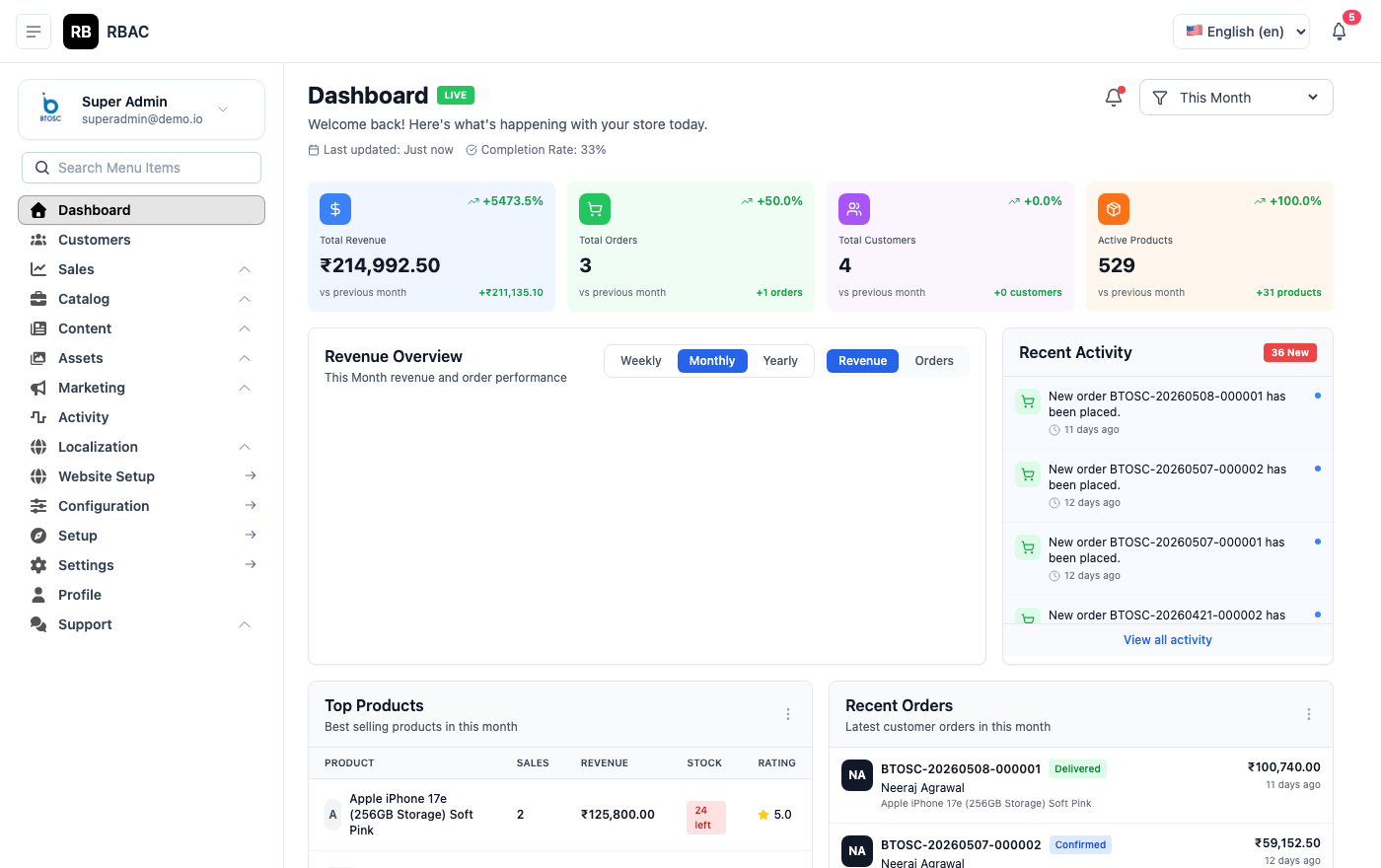 The SnapCart Admin Panel — Dashboard view with sidebar navigation, KPI cards, and revenue chart
Navigation
The admin panel is organized into the following sections accessible from the left sidebar:
| Section | Description |
|---|---|
| Dashboard | Store analytics — revenue, orders, top products |
| Products | Catalogue management — products, categories, brands, attributes |
| Orders | Order management, status updates, invoicing |
| Customers | Customer profiles, address books, order history |
| Coupons | Discount codes and flash deals |
| Shipping | Shipping zones, rates, country/state/city configuration |
| Tax Rates | Tax rate configuration per region |
| Payments | Payment gateway settings and transaction logs |
| Blog | Blog posts and blog category management |
| Pages | CMS pages (About, Terms, Privacy, Contact) |
| Gallery | Media library and file management |
| Notifications | Notification templates and broadcast management |
| Localization | Languages, currencies, translations |
| Users | Admin user accounts |
| Roles | Role definitions and permission assignments |
| Permissions | Fine-grained permission keys |
| Settings | Global store configuration |
| Activity Logs | Audit trail of admin actions |
Access Control
Every page in the admin panel is guarded by permissions. If a user does not have the required permission, that menu item and page are hidden from them entirely. Permission checks happen on both the React frontend (UI visibility) and the Spring Boot backend (API authorization) — so removing a sidebar link is not the only guard; the API will also return a 403 Forbidden response if accessed directly.
See Roles & Permissions for details on setting up access control for your team.
Admin panel URL structure
All admin routes share the /admin prefix:
| Route | Description |
|---|---|
/admin | Redirects to /admin/dashboard |
/admin/login | Admin login page |
/admin/dashboard | Analytics dashboard |
/admin/products | Product list |
/admin/orders | Order list |
/admin/customers | Customer list |
/admin/settings | Store configuration |
/admin/staff | Admin user management |
/admin/roles | Role management |
/admin/permissions | Permission list |
/admin/activity | Activity audit log |
Session management
Admin sessions are JWT-based. Tokens are stored in browser localStorage and expire after a configurable duration (default: 24 hours). After the token expires, the admin is redirected to the login page automatically.
There is no concurrent session management — multiple browser tabs share the same session. Logging out in one tab effectively logs out all tabs using that token.
Language and timezone
The admin panel interface is available in English only. The configured store timezone (from Settings → General) is used for all timestamps displayed in the admin panel — order dates, activity log entries, and scheduled flash deal times all use this timezone.
Supported browsers
| Browser | Minimum Version | Support level |
|---|---|---|
| Google Chrome | 110+ | ✅ Full support (recommended) |
| Mozilla Firefox | 110+ | ✅ Full support |
| Apple Safari | 16+ | ✅ Full support |
| Microsoft Edge | 110+ | ✅ Full support |
| Internet Explorer | Any | ❌ Not supported |
The admin panel uses modern CSS features (CSS Grid, CSS Variables, gap property). Use a current browser version for the best experience. Mobile browsers are not officially supported for the admin panel — use a desktop or laptop.
Top Bar
The top navigation bar (always visible) provides:
| Element | Description |
|---|---|
| Hamburger / sidebar toggle | Collapse or expand the left sidebar for more content space |
| Notifications bell | Badge count of unread admin notifications |
| User avatar (top-right) | Opens a dropdown: Profile, Change Password, Logout |
| Store name | Shown in the sidebar header — links back to the dashboard |
Dashboard Widgets
The dashboard is the first page after login and gives a live snapshot of store health:
- KPI cards — Total Orders, Revenue (today / this month), Total Customers, Total Products
- Revenue chart — Bar or line chart of daily/monthly revenue, filterable by date range
- Recent orders — Latest 5–10 orders with status badges, clickable to the order detail
- Top products — Best-selling products by units or revenue for the selected period
- Order status breakdown — Pie or donut chart showing the distribution of order statuses (Pending, Processing, Shipped, Delivered, Cancelled)
The dashboard auto-refreshes periodically. All figures reflect the store's configured timezone.
Getting Help
- Use the Search bar at the top of the docs sidebar to quickly find any topic.
- Check the FAQ / Troubleshooting sections at the bottom of each feature page.
- For developer-level questions, see the Tech Stack and Architecture pages.
- API reference: SnapCart API Docs.
Quick Links
| Task | Where to go |
|---|---|
| Add a product | Products → Add New |
| View and manage orders | Orders |
| Add a coupon code | Coupons |
| Set up shipping | Shipping |
| Create an admin user | Users → Add New |
| Configure payment gateways | Settings |
| Add a language or currency | Localization |
| Review admin activity | Activity Logs |