Attributes
Attributes define the variant dimensions of a product — properties like Size, Colour, or Material that a customer must choose before adding an item to their cart.
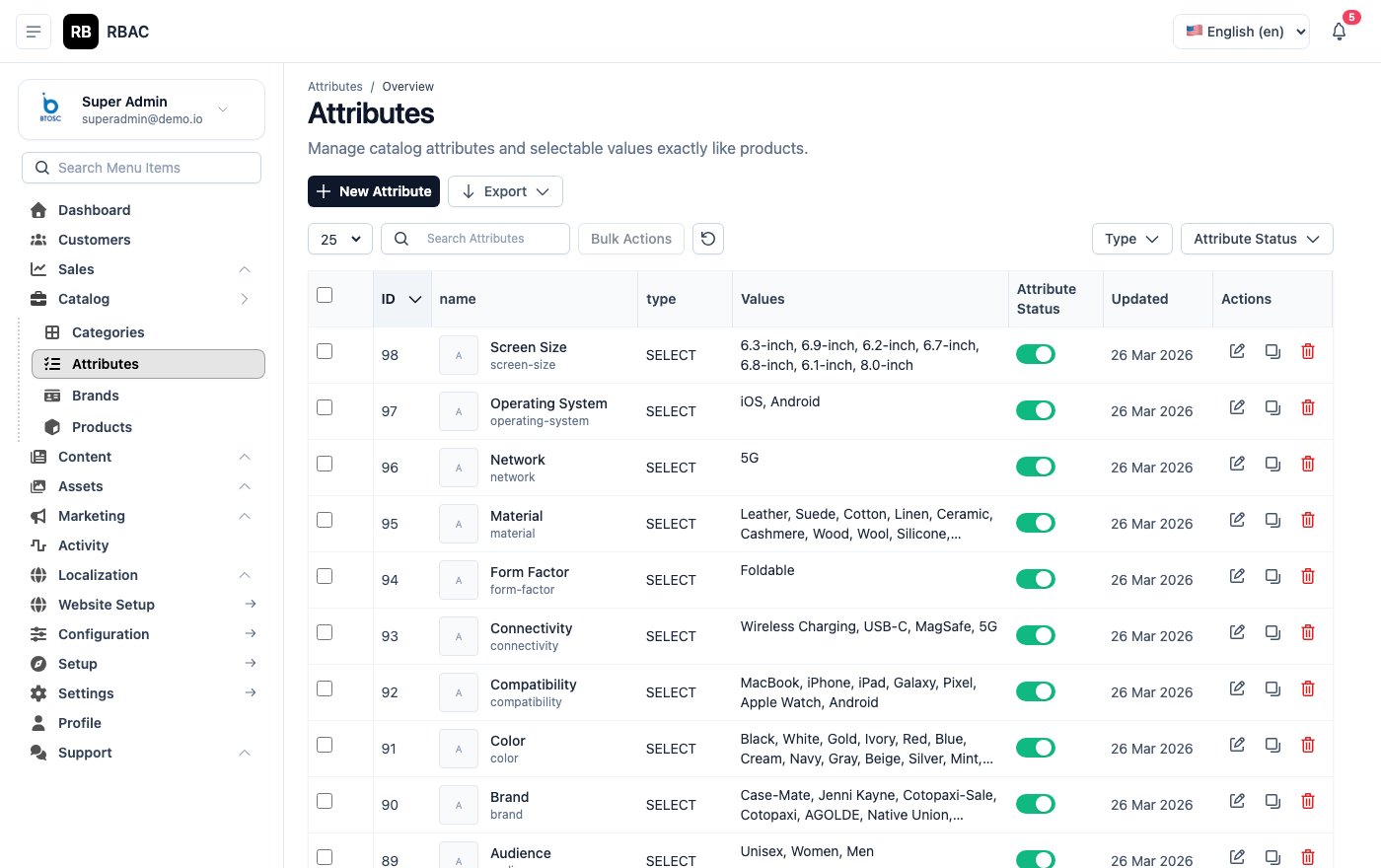 Attributes list showing attribute names and their configured values
Attributes vs Variants
Understanding the difference between attributes and variants is essential before setting up your product catalogue.
| Concept | Definition | Example |
|---|---|---|
| Attribute | A named property dimension | "Size" |
| Attribute Value | One option within that dimension | "M" (a value of Size) |
| Variant | A unique product combination across all attribute values | Size: M + Colour: Red |
Attributes are defined globally in Products → Attributes and then assigned to individual products. When you assign two or more attributes to a product and click Generate Variants, SnapCart creates every possible combination as a separate variant, each with its own price, SKU, stock quantity, and optional images.
When to use attributes
Use attributes for any property that:
- Changes price or stock independently (e.g., 256GB costs more than 128GB)
- Requires the customer to make a deliberate selection before purchasing (e.g., choosing a ring size)
- Needs to be filterable on category and search pages
Properties that do not vary per-SKU (such as a product's weight class or care instructions) belong in the Description or Specifications tab of the product, not in attributes.
How Attributes Work
- An Attribute defines the dimension (e.g., "Size").
- Each attribute has a list of Values (e.g., "S", "M", "L", "XL").
- When you assign attributes to a product and click Generate Variants, SnapCart creates every combination (e.g., S-Red, S-Blue, M-Red, M-Blue…).
- Each variant gets its own price, SKU, and stock quantity.
- On the storefront, the customer sees swatches or dropdowns for each attribute and selects their preferences before adding the item to their cart.
Managing Attributes
Go to Products → Attributes.
The list shows all global attributes with their names and a summary of their configured values. Click an attribute row to expand its value list inline.
Creating an Attribute
- Go to Products → Attributes.
- Click Add New.
- Fill in the attribute form:
| Field | Required | Description |
|---|---|---|
| Name | Yes | The attribute label shown to customers (e.g., "Size", "Colour", "Material"). Use title case. |
| Type | Yes | Controls how the storefront renders the selector. See the Type table below. |
- Click Save. The new attribute appears in the list.
- Add values to the attribute (see the next section).
Attribute Types
| Type | Storefront Rendering | Best Used For |
|---|---|---|
| Text | Plain text dropdown or chip buttons | Sizes (S, M, L), Storage (64GB, 128GB), RAM |
| Select | Dropdown select list | Long value lists where chips would overflow |
| Color | Colour swatches rendered from hex codes | Colour variants, finish variants |
Adding Attribute Values
After saving the attribute, add its possible values:
- In the Attributes list, click the attribute name or the edit icon.
- In the Values section, click Add Value.
- Enter:
| Field | Required | Description |
|---|---|---|
| Label | Yes | The text shown to customers (e.g., "Extra Large", "Midnight Black"). |
| Value / Code | Yes | The internal identifier (e.g., XL, midnight-black). For Color type, enter the hex code (e.g., #000000). |
| Sort Order | No | Integer controlling the display order of swatches on the storefront. Lower numbers appear first. |
- Click Save Value.
- Repeat for each value.
Set the Sort Order deliberately for size attributes. Customers expect sizes in natural order (XS → S → M → L → XL → XXL), not alphabetical order. Drag-and-drop reordering is available — drag values by their handle to rearrange them, then save.
Reordering Values
The order of values in the attribute editor controls the left-to-right (or top-to-bottom) order of swatches on the product detail page and the filter sidebar.
To reorder:
- Open the attribute in edit mode.
- Drag the row-handle icon on the left side of each value row to the desired position.
- Click Save.
The storefront reflects the new order immediately (subject to any caching layer). This is especially important for:
- Size attributes: Customers expect XS, S, M, L, XL, XXL — not S, L, M, XS.
- Colour attributes: Place the most popular or signature colours first.
Editing an Attribute Value
- Open the attribute in edit mode.
- Click the edit icon next to the value you want to change.
- Update the Label, Value/Code, or Sort Order.
- Click Save Value.
Renaming a value's Label is safe and takes effect immediately. Renaming the internal Value/Code may affect existing product variants — existing variants retain their stored code, but new variants generated after the rename will use the updated code.
Deleting an Attribute or Value
- Deleting a value: Removes that value from the attribute. Any product variants that used this value are also removed from those products.
- Deleting an attribute: Removes the attribute and all its values from every product it was assigned to. All variants generated from this attribute on every product are deleted.
Deleting an attribute value that is used in active product variants will remove those variants. Orders referencing deleted variants are not affected — the order data is preserved. However, restock, return, and analytics features that link back to variant SKUs may be impacted. Always audit which products use a value before deleting it.
How Attributes Connect to the Product Variants Tab
When editing a product, the Variants tab uses the globally defined attributes:
- In the Variants tab, click Add Attribute.
- Select one or more attributes from the dropdown (e.g., Size, Colour).
- Select which values apply to this specific product (e.g., only S, M, L — not XL if out of stock for this style).
- Click Generate Variants. SnapCart creates a row for every combination.
- For each row, set the Price, SKU, Stock, and optionally upload a Variant Image.
Changes to the global attribute (adding a new value) do not automatically add new variants to existing products. You must open each product and regenerate or manually add the new variant.
Common Attributes — Examples
Size (Type: Text)
| Label | Value | Sort Order |
|---|---|---|
| Extra Small | XS | 1 |
| Small | S | 2 |
| Medium | M | 3 |
| Large | L | 4 |
| Extra Large | XL | 5 |
| Double Extra Large | XXL | 6 |
On the storefront, these appear as chip buttons in sort-order sequence.
Colour (Type: Color)
| Label | Value (Hex) | Sort Order |
|---|---|---|
| Midnight Black | #1a1a1a | 1 |
| Ivory White | #f5f5f0 | 2 |
| Royal Blue | #2563eb | 3 |
| Crimson Red | #dc2626 | 4 |
| Forest Green | #16a34a | 5 |
On the storefront, these render as circular colour swatches. Hovering a swatch shows the Label as a tooltip. The selected swatch is highlighted with a border ring.
Material (Type: Text)
| Label | Value | Sort Order |
|---|---|---|
| Cotton | cotton | 1 |
| Polyester | polyester | 2 |
| Silk | silk | 3 |
| Wool | wool | 4 |
| Linen | linen | 5 |
Storage (Type: Select)
| Label | Value | Sort Order |
|---|---|---|
| 64 GB | 64gb | 1 |
| 128 GB | 128gb | 2 |
| 256 GB | 256gb | 3 |
| 512 GB | 512gb | 4 |
| 1 TB | 1tb | 5 |
Tips and Best Practices
- Reuse global attributes across products: Define "Size" once and assign it to every apparel product. This ensures consistent labelling and enables attribute-based filtering across the entire catalogue.
- Keep attribute names concise: "Colour" rather than "Available Colour Options". The name appears as a filter label on the storefront — shorter labels look better on mobile.
- Use Color type for any visible colour: Even if the colour name is text (e.g., "Navy"), use the Color type and supply a representative hex code so the storefront can render a visual swatch.
- Do not create per-product attributes: Attributes are global. If you create "T-Shirt Size" and "Jeans Size" separately, filters will split across two facets instead of one. Use a single "Size" attribute for all clothing.
- Plan your value set before going live: Adding values later is easy, but removing values that are already in active variants requires extra steps. Finalise the value list for core attributes (Size, Colour) before creating products.
Troubleshooting
Swatches are showing in the wrong order on the storefront. Check the Sort Order values for each attribute value. Values with the same sort order number may appear in an unpredictable sequence. Assign unique, sequential integers.
Generate Variants created too many combinations. If a product has three attributes each with five values, you get 125 variants. Only assign the values that genuinely apply to a specific product, not every value in the global attribute. Deselect inapplicable values before generating.
A variant is missing after I added a new attribute value. New values added to a global attribute do not auto-populate existing products. Open the product, go to the Variants tab, select the new value, and regenerate or add the specific variant manually.