Brands
Brands let customers filter products by manufacturer or label. Each product can be assigned to one brand. A well-maintained brand list improves product discoverability, builds trust with shoppers who recognise familiar names, and supports dedicated brand landing pages in the storefront.
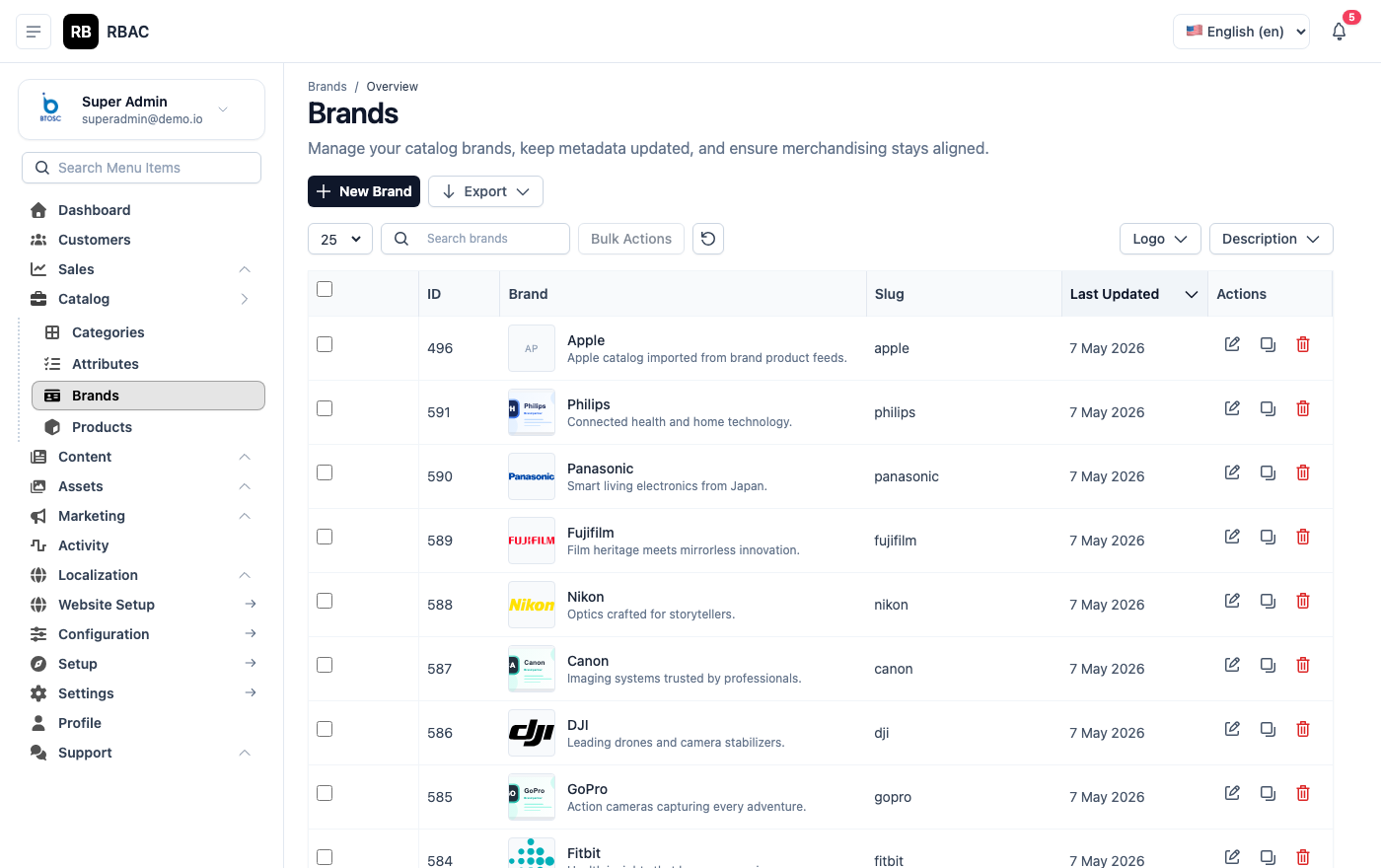 Brands list showing brand names, logos, slugs, and product counts
Managing Brands
Go to Products → Brands.
The list table displays every brand with the following columns:
| Column | Description |
|---|---|
| Logo | Thumbnail of the brand logo |
| Name | Brand display name |
| Slug | URL identifier used in storefront links |
| Products | Count of products currently assigned to this brand |
| Status | Active or Inactive badge |
| Actions | Edit and Delete icon buttons |
Use the search bar at the top of the list to filter brands by name. Click a column header to sort the list by that field.
Adding a Brand
- Go to Products → Brands.
- Click Add New (top-right corner).
- Fill in the brand form:
| Field | Required | Description |
|---|---|---|
| Name | Yes | The brand's display name as it appears on the storefront (e.g., "Samsung", "Nike", "Apple"). Use the official capitalisation. |
| Slug | Yes | URL-friendly identifier auto-generated from the name (e.g., samsung, nike). Must be lowercase, with hyphens in place of spaces, and no special characters. |
| Logo | No | Brand logo image. Recommended dimensions: 200 × 80 px (landscape) or 200 × 200 px (square). Use PNG with a transparent background for best results on all backgrounds. |
| Description | No | A short paragraph describing the brand. Displayed on the brand's storefront page if a dedicated brand page is enabled. Supports basic rich text. |
| Status | Yes | Set to Active to show this brand in filters and carousels. Set to Inactive to hide it from the storefront without deleting it. |
- Click Save.
The new brand appears in the list immediately and can be assigned to products from the product edit form (Products → All Products → Edit Product → Brand).
Editing a Brand
- In the Brands list, click the edit icon (pencil) next to the brand.
- Update any field — Name, Slug, Logo, Description, or Status.
- Click Save.
Changing a brand's slug updates all storefront URLs for that brand page. If you have external links pointing to the old URL, add a redirect or inform your SEO team before changing slugs on established brands.
Deleting a Brand
Click the delete icon (trash can) next to the brand.
Constraint: A brand cannot be deleted while products are assigned to it. The system will display an error message indicating how many products reference the brand.
Recommended workflow when you want to retire a brand:
- Determine whether the brand's products should be reassigned to another brand or have their brand field cleared.
- Go to Products → All Products and filter by the brand in question.
- Edit each product and select a different brand or leave the brand field empty.
- Return to Products → Brands and delete the now-unreferenced brand.
Alternative — set the brand to Inactive: If reassigning products is not practical (e.g., the brand has hundreds of products and you only want to temporarily hide it), set the brand's Status to Inactive. Inactive brands are hidden from storefront filters and carousels but remain associated with their products in the database. You can reactivate the brand at any time.
Storefront Display
Active brands appear in the following storefront locations:
- Brand filter on category/search listing pages: Customers can check one or more brands to narrow results.
- Brand carousel on the homepage: If the homepage brand carousel widget is enabled in Settings → Homepage, active brands with logos are displayed in a scrollable row.
- Product detail page: The assigned brand name links to a brand listing page showing all active products from that brand.
SEO Best Practices for Brand Slugs
The slug determines the brand page URL — for example, nike generates /brand/nike. Well-crafted slugs improve search rankings for brand-specific queries.
| Guideline | Good Example | Bad Example |
|---|---|---|
| Use only lowercase letters and hyphens | calvin-klein | Calvin_Klein |
| Match the brand's widely-searched name | louis-vuitton | lv |
| Avoid version numbers or internal codes | samsung | samsung-2024 |
| Keep it concise | under-armour | under-armour-sports-brand |
| Do not include "brand" or "shop" | adidas | adidas-brand |
Tips and Best Practices
- Upload logos before publishing: Brands without logos appear as plain text in the brand carousel. Upload a logo for every active brand to make the carousel visually consistent.
- Limit active brands to brands you actually stock: A long list of brands with zero or one product apiece dilutes the filter and makes it harder for customers to find what they want.
- Use consistent capitalisation in the Name field: "Nike" and "NIKE" are different names. Decide on a style (typically title case) and apply it consistently.
- Write brand descriptions with SEO in mind: If brand pages are indexed by search engines, include the brand name naturally in the description along with relevant keywords (e.g., product categories the brand covers).
- Review product counts regularly: A brand with a product count of zero can safely be deactivated or deleted. Use the Products column in the brand list to identify unused brands quickly.
Importing Brands in Bulk
If you are migrating from another platform or setting up a new store with many brands, you can create brands programmatically via the SnapCart REST API rather than entering them one by one through the admin UI.
Refer to the API documentation for the POST /api/admin/brands endpoint. Each request body requires the name and slug fields at minimum. Logos can be uploaded separately via the POST /api/admin/brands/{id}/logo endpoint after the brand record is created.
For smaller sets (under 20 brands), creating them manually through the admin UI is typically faster than setting up an API import script.
Brand vs Category — When to Use Which
It is common to confuse brands and categories when first setting up a product catalogue. Use this guidance to assign each correctly:
| Question | Use Brand | Use Category |
|---|---|---|
| Who made the product? | Yes — Nike, Samsung | No |
| What type of product is it? | No | Yes — Footwear, Electronics |
| Should the customer filter by manufacturer? | Yes | No |
| Should the customer browse a product group? | No | Yes |
Does the URL need to be /brand/x? | Yes | No — use /category/x |
A product belongs to exactly one brand and exactly one category (the most specific applicable category). Both can be assigned independently and are not mutually exclusive.
Troubleshooting
The brand carousel is not showing on the homepage. Check that the brand carousel widget is enabled in Settings → Homepage Sections. Also confirm that at least one active brand has a logo uploaded — the carousel may be hidden when no logos are available.
I changed the brand name but the storefront still shows the old name. Clear the storefront cache if server-side caching is enabled. Changes are reflected immediately on cache-miss requests.
A brand shows 0 products even though I assigned it to products. Check that those products have their Status set to Active and their Stock is greater than zero (or out-of-stock visibility is enabled). Product count in the brand list reflects published, active products by default.
The brand filter on the category page is not appearing. The brand filter is only displayed on a category page when at least two different brands have active products in that category. A single-brand category does not show the brand filter, as it provides no filtering value.