Categories
Categories organise your product catalogue into a hierarchy that customers can browse. SnapCart supports multi-level nested categories (parent → child → grandchild), allowing you to model virtually any product taxonomy.
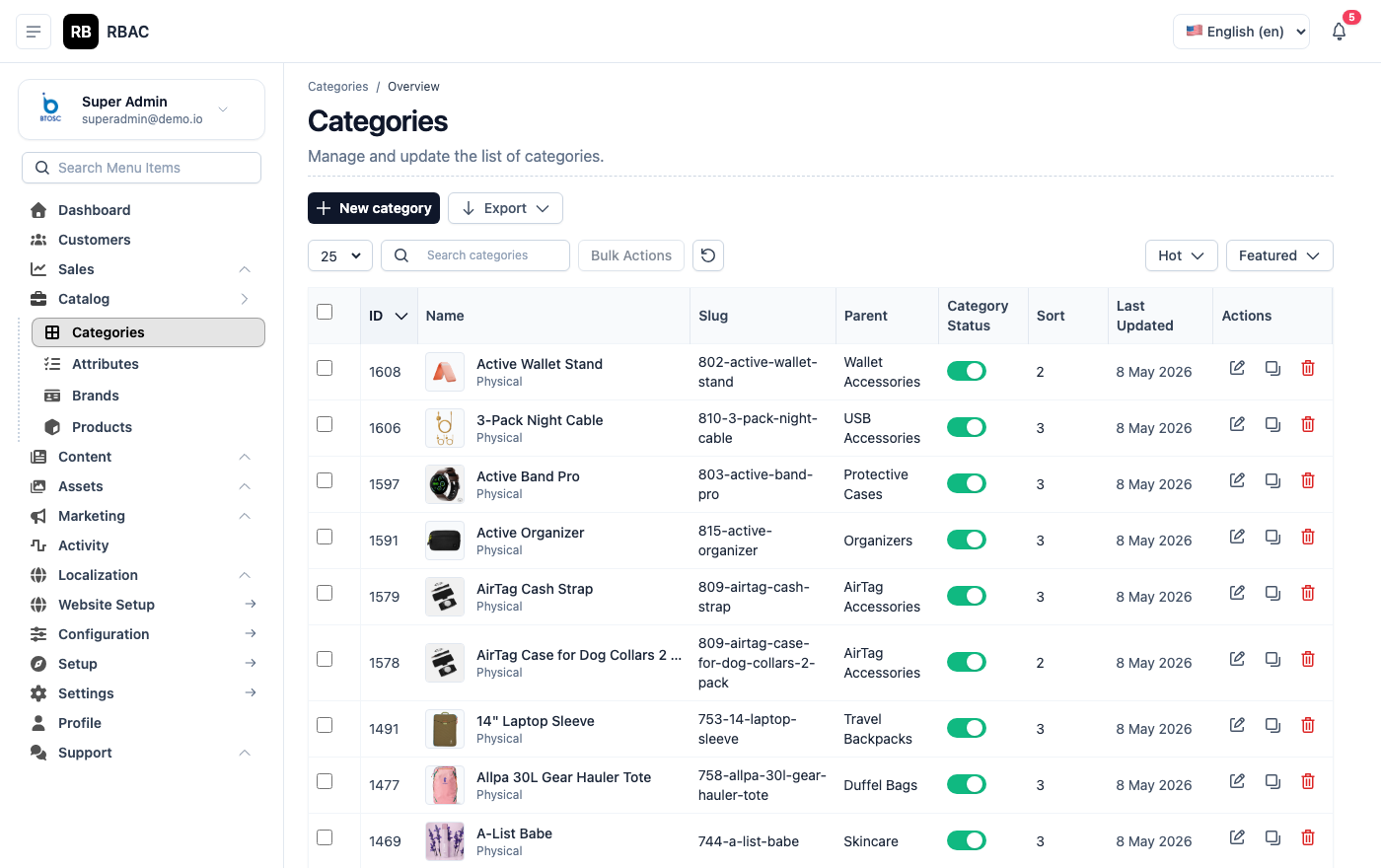 Categories list showing category names, parent categories, product counts, and status
Viewing Categories
Go to Products → Categories. The list shows all categories as a flat table with the following columns:
| Column | Description |
|---|---|
| Name | Display name with indentation showing parent–child relationships |
| Slug | The URL segment for this category |
| Parent | Name of the parent category, or "—" for top-level categories |
| Products | Count of active products directly assigned to this category |
| Status | Active or Inactive badge |
| Actions | Edit and Delete icon buttons |
You can search by category name using the search bar at the top of the list. Click any column header to sort the list.
Creating a Category
- Go to Products → Categories.
- Click Add New (top-right corner).
- Fill in the category form:
| Field | Required | Description |
|---|---|---|
| Name | Yes | Display name shown to customers in navigation menus, breadcrumbs, and the category page heading (e.g., "Smartphones", "Women's Clothing"). |
| Slug | Yes | URL segment auto-generated from the name. Must be lowercase with hyphens (e.g., womens-clothing). Appears in the storefront URL. |
| Parent Category | No | Leave blank to create a top-level category. Select an existing category to make this a child or grandchild. Maximum nesting depth: 3 levels. |
| Description | No | Rich-text description displayed at the top of the category page. Use this to add keyword-rich content for SEO. |
| Image | No | Category banner or icon image. Recommended dimensions: 600 × 400 px for card thumbnails or 1200 × 400 px for full-width banners. |
| Status | Yes | Active makes the category visible on the storefront. Inactive hides it without deleting it or unassigning its products. |
| Meta Title | No | Title tag for the category page. Aim for 50–60 characters. Include the primary keyword (e.g., "Buy Smartphones Online — SnapCart"). |
| Meta Description | No | Description tag shown in search results. Aim for 150–160 characters. Summarise what customers will find on the page. |
- Click Save.
Category Hierarchy and URL Structure
SnapCart supports up to 3 levels of nesting: top-level, child, and grandchild. A deeper hierarchy is not supported and may cause navigation issues.
Nested categories generate breadcrumb-friendly URLs automatically:
| Level | Example Name | Generated URL |
|---|---|---|
| Top-level | Electronics | /category/electronics |
| Child | Smartphones | /category/electronics/smartphones |
| Grandchild | Android Phones | /category/electronics/smartphones/android |
Category pages display products from the selected category only. If you want a parent category page to also list products from its children, enable Include sub-category products in Settings → Catalogue.
Breadcrumbs on the storefront
Every category page and product detail page shows a breadcrumb trail (e.g., Home > Electronics > Smartphones > Android Phones). Breadcrumbs are generated from the category hierarchy — correct nesting is essential for accurate breadcrumbs.
Editing a Category
- In the Categories list, click the edit icon (pencil) next to the category.
- Update any field.
- Click Save.
Changing a category's slug updates its storefront URL and all child category URLs. If search engines have indexed the old URL, set up a redirect to avoid 404 errors. Inform your SEO team before changing slugs on established categories.
Deleting a Category
Click the delete icon (trash can) next to the category.
Constraint: A category can only be deleted if no products are assigned to it. The system displays an error with the count of blocking products.
Recommended workflow before deleting a category:
- Go to Products → All Products and filter by the category you intend to delete.
- Reassign each product to a different category using bulk edit or individual product edits.
- If the category has child categories, reassign or delete those child categories first (children must be empty before the parent can be deleted).
- Return to Products → Categories and delete the now-empty category.
Alternative — set the category to Inactive: Setting Status to Inactive removes the category from storefront navigation and hides its page, without requiring you to move any products. This is a safer approach when you need to temporarily hide a category.
Nested Categories — Planning Your Hierarchy
Plan your category tree before importing products. Redesigning the hierarchy later requires reassigning products and updating slugs, which can affect SEO.
Recommended maximum depth for most stores:
Electronics                          (Level 1 — Top)
├── Mobile Phones                    (Level 2 — Child)
│   ├── Android Phones               (Level 3 — Grandchild)
│   └── iPhones                      (Level 3 — Grandchild)
└── Laptops                          (Level 2 — Child)
    ├── Gaming Laptops               (Level 3 — Grandchild)
    └── Ultrabooks                   (Level 3 — Grandchild)
Tips for structuring your hierarchy:
- Use top-level categories for broad divisions (Electronics, Clothing, Home & Garden).
- Use child categories for meaningful sub-divisions that a customer would specifically navigate to.
- Avoid creating grandchild categories unless you have a substantial number of products to justify them (aim for at least 8–10 products per leaf category).
- Do not replicate the same product in multiple categories; assign it to the most specific applicable category.
Featured Categories
Mark a category as Featured to display it prominently on the storefront homepage in the Featured Categories section.
To feature a category:
- Open the category in edit mode.
- Enable the Featured toggle.
- Click Save.
Featured categories are displayed as visual tiles on the homepage (image + name). For the best visual result:
- Upload a high-quality Category Image for every featured category.
- Limit featured categories to 6–8 for a clean layout. Too many tiles require the homepage section to scroll or wrap to a second row.
- Arrange the display order of featured categories from Settings → Homepage Sections if a custom order is required.
SEO Best Practices for Categories
Well-optimised category pages can rank for high-volume, transactional search queries (e.g., "buy running shoes online").
| Field | Recommendation |
|---|---|
| Meta Title | Include the primary keyword and your store name. Example: "Running Shoes for Men & Women — SnapCart" |
| Meta Description | Mention key selling points (range, price, delivery). Example: "Shop 200+ running shoes from top brands. Free delivery on orders over ₹999." |
| Slug | Match common search terms. /running-shoes ranks better than /cat-112. |
| Description | Write 100–200 words of useful, keyword-rich copy at the top or bottom of the category page. |
| Image Alt Text | Set descriptive alt text on category images via the Gallery uploader. |
Troubleshooting
I cannot find a category in the dropdown when editing a product. Check that the category's Status is set to Active. Inactive categories do not appear in the product edit form's category selector.
Deleting a category fails even though no products are shown in the Products column. The Products column counts active products. The category may still have inactive or draft products assigned. Set the product filter in Products → All Products to include all statuses and reassign any products belonging to that category.
Child category URLs are broken after I moved a category to a different parent. Changing a category's parent changes all child URLs. Clear any URL caching and update internal links or navigation menus that reference the old path.
The Featured Categories section is not visible on the homepage. Verify that the Featured Categories widget is enabled in Settings → Homepage Sections and that at least one Active category has the Featured flag enabled.