Managing Products
Products are the foundation of your SnapCart store. This guide covers everything from adding a simple product to configuring multi-attribute variants, managing stock, and optimising for search engines.
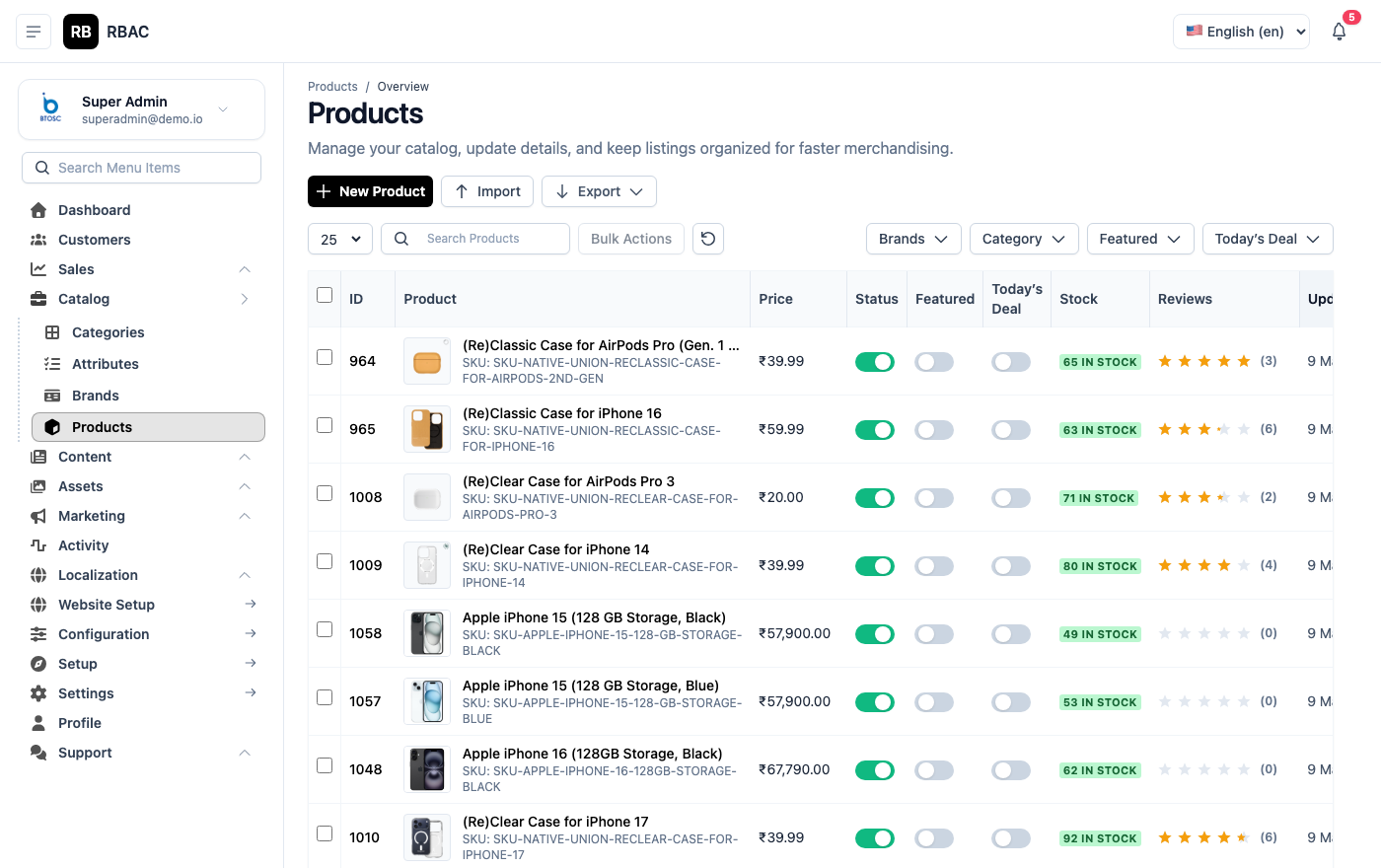 Products list showing thumbnails, names, SKUs, prices, stock levels, and status badges
Accessing Products
Go to Products → Products in the left sidebar.
:::info Permissions required
| Action | Permission |
|---|---|
| View products | product.view |
| Create products | product.create |
| Edit products | product.edit |
| Delete products | product.delete |
| ::: |
Product List Overview
The list view shows all products in a paginated table. You can:
- Search by product name, SKU, or description keyword
- Filter by Category, Brand, or Status using the dropdowns at the top
- Sort by clicking any column header
- Use the Import / Export buttons to bulk-manage products via CSV
Product list with the search bar and filter dropdowns highlighted
| Column | Description |
|---|---|
| Image | Primary product thumbnail |
| Name | Product display name and SKU |
| Category | Assigned category |
| Brand | Assigned brand |
| Price | Regular price / Sale price (if active) |
| Stock | Current available stock quantity |
| Status | Active, Inactive, or Draft |
| Actions | Edit, Duplicate, Delete |
Adding a New Product
Click Add New in the top-right corner. The product form is divided into tabs.
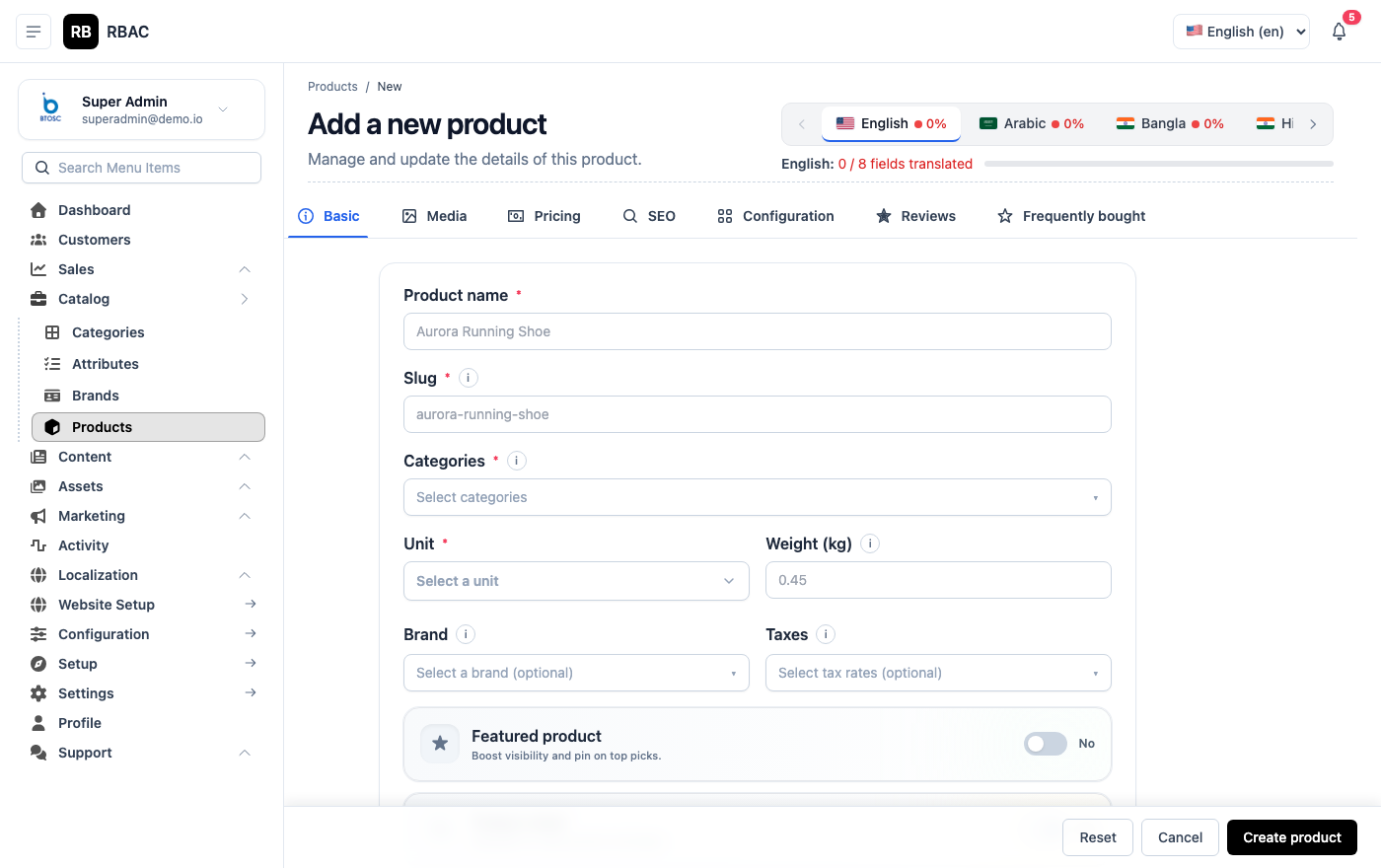 Add Product form showing the tabbed layout: General, Pricing, Inventory, Images, Variants, SEO
Tab 1 — General Information
| Field | Required | Description |
|---|---|---|
| Product Name | ✅ | The name customers see on the storefront and in search results |
| Slug | ✅ | URL-friendly identifier, auto-generated from the name. Edit if needed (e.g., apple-iphone-15-pro) |
| SKU | ✅ | Your internal stock keeping unit code. Must be unique across all products |
| Description | ✅ | Full product description shown on the product detail page. Supports rich text (bold, lists, tables, images) |
| Short Description | — | 1–2 sentence summary shown on category listing cards |
| Category | ✅ | Select one or more categories from the dropdown |
| Brand | — | Select the product brand |
| Tags | — | Comma-separated keywords used for storefront search (e.g., smartphone, apple, 5G) |
| Status | ✅ | Active = visible on storefront; Inactive = hidden; Draft = saved but not published |
:::tip Writing good descriptions Use the rich text editor to format descriptions with bullet points for key features, a short intro paragraph, and a specifications section. Well-formatted descriptions improve conversion rates and SEO. :::
Tab 2 — Pricing
Pricing tab showing Regular Price, Sale Price, and sale date range fields
| Field | Description |
|---|---|
| Regular Price | The standard selling price displayed on the storefront |
| Sale Price | A discounted price. When set, both prices are shown and a discount badge appears |
| Sale Start Date | Date from which the sale price becomes active |
| Sale End Date | Date on which the sale price expires and reverts to the regular price |
| Tax Class | Select the applicable tax class for this product (configured in Tax Rates) |
:::info Sale price scheduling If you enter Sale Start and End dates, the storefront automatically shows the sale price during that window — no manual intervention needed. :::
Tab 3 — Inventory
Inventory tab showing stock quantity, low stock threshold, and backorder settings
| Field | Description |
|---|---|
| Track Inventory | Toggle on to enable stock management. Toggle off for products with unlimited stock (e.g., digital goods) |
| Stock Quantity | Number of units currently available |
| Low Stock Threshold | When stock falls to or below this number, the product appears in the Dashboard's Low Stock Alerts panel |
| Allow Backorders | If enabled, customers can order even when stock is 0. Orders are placed and fulfilled when stock arrives |
| Stock Status | In Stock / Out of Stock / On Backorder — shown to customers on the product page |
Tab 4 — Images
Images tab showing the primary image slot and the additional images gallery grid
Every product should have at least one high-quality image. SnapCart supports multiple images per product.
Adding images:
- Click Add Images to open the gallery picker.
- Upload new files or select existing ones from the gallery.
- Click Confirm Selection.
Ordering images:
- Drag and drop image cards to reorder them.
- The first image is the primary image used in listing cards, search results, and social sharing.
Image guidelines:
- Recommended size: 800×800 px or larger (square)
- Maximum file size: 5 MB per image
- Supported formats: JPEG, PNG, WebP
- Use a white or neutral background for product shots
:::tip Alt text for SEO Click the pencil icon on any image to add alt text describing the image. Alt text helps search engines index your images and improves accessibility for screen readers. :::
Tab 5 — Variants (Attributes)
If your product comes in different sizes, colours, materials, or other options, use the Variants tab to configure all combinations.
Variants tab showing attribute selector, value chips, and the generated variant matrix
Setting up variants:
- Click Add Attribute and select an attribute (e.g., "Size").
- Choose the values that apply to this product (e.g., S, M, L, XL).
- Add another attribute if needed (e.g., "Colour" → Red, Blue).
- Click Generate Variants — SnapCart creates every combination automatically (S-Red, S-Blue, M-Red, M-Blue, L-Red, L-Blue, XL-Red, XL-Blue).
Configuring each variant:
For each generated variant row, set:
| Field | Description |
|---|---|
| Image | Variant-specific image (e.g., a photo of the red version) |
| SKU | Unique SKU for this specific combination |
| Price | Override price (leave blank to inherit from the main product price) |
| Stock | Available stock for this combination |
| Status | Active or Inactive (inactive variants are hidden from customers) |
Variant matrix showing all Size × Colour combinations with individual price, SKU, and stock fields
:::tip Managing many variants If you have 20+ variants, use the Bulk Edit option in the variant table header to set the same price or stock quantity across multiple variants at once. :::
Tab 6 — SEO
SEO tab showing Meta Title, Meta Description, and a live Google preview snippet
| Field | Recommended Length | Description |
|---|---|---|
| Meta Title | 50–60 characters | Page title shown in browser tabs and search engine results |
| Meta Description | 140–160 characters | Short description shown under the title in search results |
| Meta Keywords | — | Comma-separated keywords (used by some search engines) |
The SEO tab shows a live preview snippet of how the product will appear in Google search results as you type.
:::tip SEO best practices
- Include the primary keyword in the Meta Title (e.g., "Buy iPhone 15 Pro 256GB — SnapCart")
- Write the Meta Description as a call-to-action (e.g., "Shop the latest iPhone 15 Pro with fast delivery. Choose from 3 storage options. Free shipping above ₹999.")
- Don't duplicate the Meta Title across multiple products :::
Editing a Product
Click the Edit (pencil) icon on any product in the list. All tabs are identical to the Add Product form. Changes are saved only when you click Save — there is no auto-save.
Duplicating a Product
Click the Duplicate icon to create an exact copy of the product with "(Copy)" appended to the name. The copy is saved as Draft so it doesn't immediately appear on the storefront. Edit the copy to change the name, price, and images before publishing.
This is useful when you have many similar products (e.g., same product in different colours) and want to avoid re-entering all the details.
Bulk Actions
Select multiple products using the checkboxes in the list to perform bulk operations:
| Action | Description |
|---|---|
| Activate | Set all selected products to Active status |
| Deactivate | Set all selected products to Inactive (hidden from storefront) |
| Delete | Permanently delete selected products |
| Export | Download selected products as a CSV file |
Importing Products via CSV
- Click Import at the top of the Products list.
- Download the CSV template from the import dialog.
- Fill in the template with your product data — each row is one product.
- Upload the completed CSV.
- Review the import preview and confirm.
Required CSV columns: name, sku, price, status
Optional columns: description, sale_price, category, brand, stock_quantity, meta_title, meta_description
Deleting a Product
Click the Delete (trash) icon on a product. Products that appear in existing orders cannot be deleted — this protects order history integrity. To remove them from the storefront, set their status to Inactive instead.
:::warning Permanent deletion Deleting a product removes it from the catalogue permanently, including all its images, variant configurations, and SEO settings. This cannot be undone. :::
Related
- Categories — Organise products into a browsable hierarchy
- Brands — Assign manufacturer / brand labels
- Attributes — Define variant dimensions like Size and Colour