Shipping
The Shipping section lets you define where you ship, what it costs, and which methods are offered to customers at checkout. SnapCart uses a zone-based shipping model — you define geographic zones and attach one or more rates to each zone.
 Shipping Zones list showing zone names, covered countries, and assigned rates
Accessing Shipping
Click Shipping in the left sidebar.
:::info Permissions required
| Action | Permission |
|---|---|
| View shipping | shipping.view |
| Create/edit zones and rates | shipping.create, shipping.edit |
| Delete zones | shipping.delete |
| ::: |
How Zone-Based Shipping Works
- You create a Shipping Zone and assign countries (or states) to it.
- Within each zone, you add one or more Shipping Rates (e.g., Standard, Express).
- At checkout, SnapCart checks the customer's delivery address and shows all active rates for the matching zone.
- If no zone matches the customer's country, shipping is unavailable for that address.
Enabling Shipping
Before zones appear at checkout, shipping must be globally enabled.
- Go to Settings → Shipping.
- Toggle Enable Shipping to ON.
- Click Save.
Creating a Shipping Zone
Create Zone form showing the Zone Name field and the country multi-select
- Go to Shipping → Zones.
- Click Add New Zone.
- Enter a Zone Name — this is an internal label (e.g., "India", "South Asia", "Europe", "Rest of World").
- In the Countries field, select all countries that belong to this zone.
- Click Save Zone.
Example Zone Setup
| Zone Name | Countries Included |
|---|---|
| India | India |
| South Asia | Pakistan, Bangladesh, Sri Lanka, Nepal |
| Europe | All EU member states |
| Rest of World | All remaining countries |
:::tip "Rest of World" zone Create a catch-all "Rest of World" zone and assign all remaining countries to it with a single high flat rate. This ensures customers from any country can always see a shipping option rather than an empty checkout. :::
Adding Shipping Rates to a Zone
Each zone can have multiple rates (e.g., Standard + Express). Customers see all active rates and choose one.
Add Rate modal showing Rate Name, Type, Cost, and Delivery Time fields
- Open the zone by clicking its name.
- Click Add Rate.
- Configure the rate:
| Field | Description |
|---|---|
| Rate Name | Displayed to customers at checkout (e.g., "Standard Delivery", "Express Shipping") |
| Type | See rate types below |
| Cost | Base shipping charge in your default currency |
| Free Shipping Threshold | Orders above this amount get this rate for free (applies to Free Shipping type) |
| Estimated Delivery | Displayed to customers (e.g., "3–5 business days") |
| Status | Active or Inactive |
- Click Save Rate.
Shipping Rate Types
| Type | How Cost is Applied |
|---|---|
| Flat Rate | A fixed amount regardless of order size or weight (e.g., ₹80 flat) |
| Free Shipping | No charge — optionally only when order total exceeds a threshold |
| Weight Based | Cost calculated as: base cost + (weight × rate per kg) |
Example Rate Configurations
India — Standard:
- Type: Flat Rate
- Cost: ₹80
- Delivery: 3–5 business days
India — Express:
- Type: Flat Rate
- Cost: ₹200
- Delivery: 1–2 business days
India — Free Shipping:
- Type: Free Shipping
- Threshold: ₹999 (free for orders above ₹999)
- Delivery: 5–7 business days
Country, State, and City Configuration
SnapCart ships with a complete geo database covering 250+ countries, 5,000+ states/provinces, and 100,000+ cities. This data powers both the shipping configuration and the customer address form.
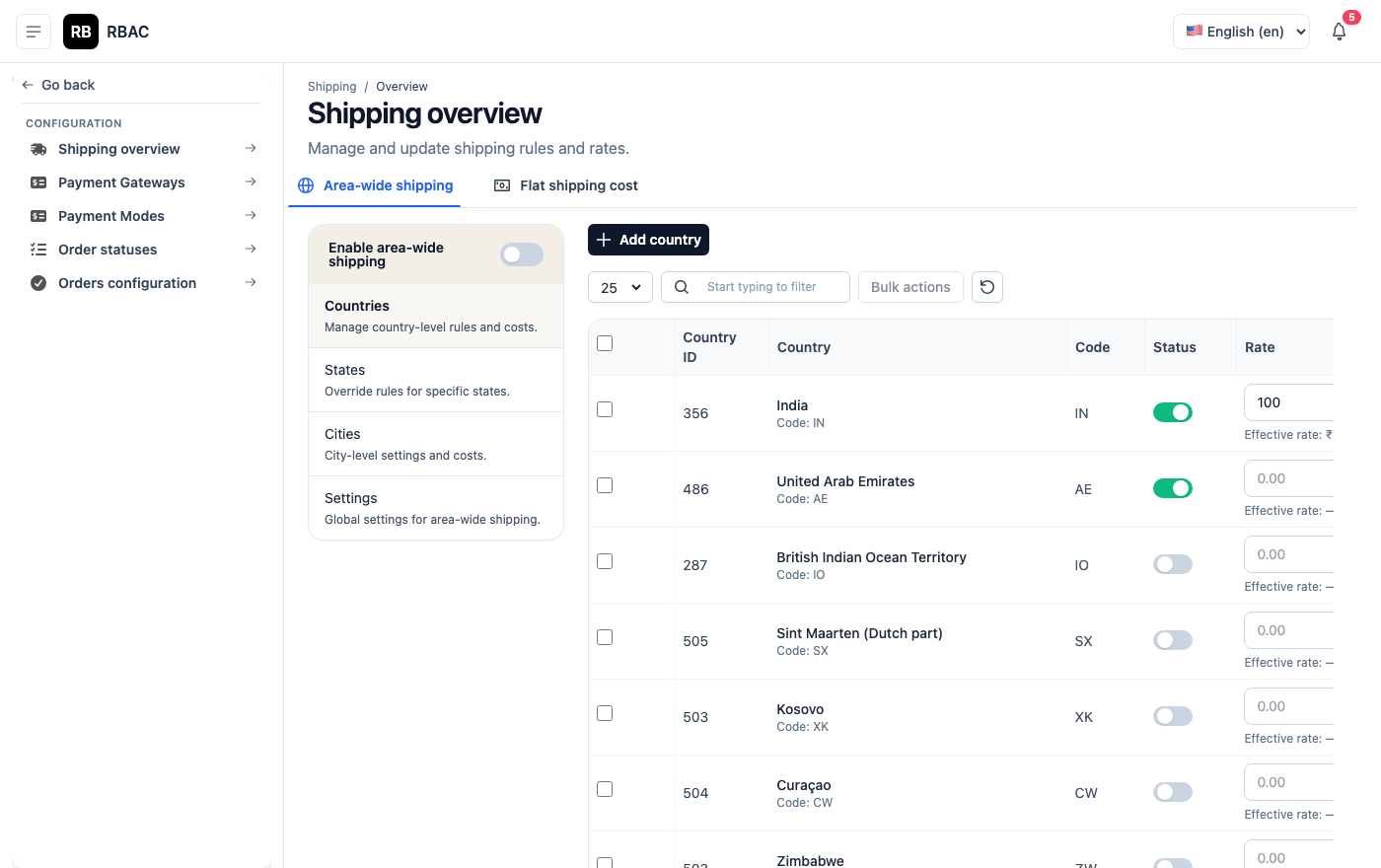
Managing Countries
- Go to Shipping → Countries.
- The list shows all countries with their ISO code, currency, and enabled status.
- Toggle countries ON or OFF to control which ones appear in customer address forms.
Countries list with enable/disable toggles and ISO codes
:::tip Enable only countries you ship to Disable all countries you don't ship to. This prevents customers from entering addresses in countries where you have no shipping zone and reduces checkout confusion. :::
Managing States
- Go to Shipping → States.
- Filter by country to see its states/provinces.
- You can add custom states or disable ones that don't apply.
State-level configuration is useful for:
- Applying state-specific tax rates
- Shipping restrictions within a country
Managing Cities
Go to Shipping → Cities for city-level granularity. Most stores don't need city-level configuration unless they offer hyper-local delivery with city-specific pricing.
Global Free Shipping Threshold
You can configure a global free shipping threshold that applies across all zones, in addition to zone-level free shipping rates.
- Go to Settings → Shipping.
- Set Free Shipping Above to the order amount threshold (e.g., ₹1,500).
- Click Save.
When a customer's order total exceeds this amount, they see a "Free Shipping" option at checkout regardless of their zone.
Testing Your Shipping Configuration
After setting up zones and rates, always test the checkout from a customer address in each zone:
- Log in to your storefront as a customer (or use a private browser window).
- Add products to the cart.
- Proceed to checkout and enter a delivery address in each zone.
- Confirm the correct rates appear.
- Verify no rates appear for an address in a country you haven't assigned to any zone (the customer should see a "shipping unavailable" message).
Common Shipping Scenarios
Scenario 1: Domestic-only store (India)
- Create zone: India → select India
- Add rate: Standard ₹80 flat / Express ₹200 flat / Free above ₹999
- Disable all non-India countries under Shipping → Countries
Scenario 2: Global store with tiered pricing
- Create zone India → flat rates
- Create zone Asia Pacific → higher flat rate
- Create zone Europe & Americas → even higher flat rate
- Create zone Rest of World → highest flat rate or disable
Scenario 3: Digital products (no shipping)
- Go to Settings → Shipping
- Toggle Enable Shipping OFF
- No shipping step appears at checkout