Tax Rates
The Tax Rates section lets you configure region-specific taxes that are automatically applied to orders at checkout. Go to Tax Rates in the left sidebar.
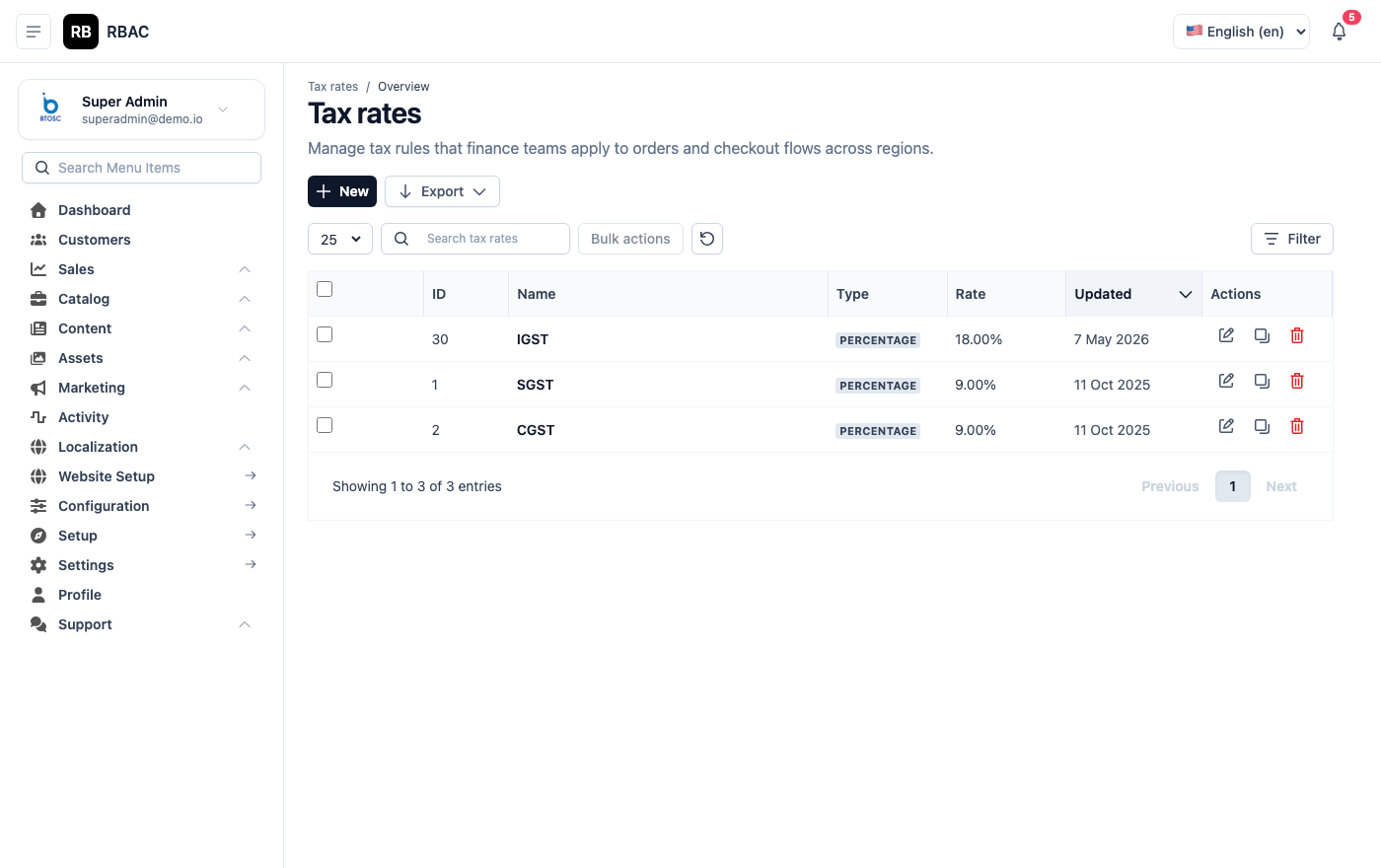 Tax Rates list showing configured rates with country, region, rate percentage, and status
How Tax Matching Works in SnapCart
When a customer reaches the payment step of checkout, SnapCart determines the applicable tax rate by matching the customer's shipping address against configured tax rates in the following priority order:
- Country + State match (highest priority): If a rate exists for the exact country and state of the shipping address, that rate is applied. Example: a customer in California, United States gets the "CA Sales Tax" rate, not a general US rate.
- Country-only match: If no state-specific rate exists, SnapCart applies any rate configured for the country without a state restriction.
- No match: If no rate matches the shipping address, no tax is added to the order.
Only one tax rate is applied per order. If multiple rates match (e.g., two active country-only rates for the same country), the first active rate by creation date is used. To avoid ambiguity, ensure each country has at most one country-wide rate and one rate per state/province.
The tax amount is shown as a separate line item in the order summary at checkout and on the order confirmation page.
Adding a Tax Rate
- Go to Tax Rates.
- Click Add New (top-right corner).
- Fill in the tax rate form:
| Field | Required | Description |
|---|---|---|
| Name | Yes | Display name shown to customers in the order summary (e.g., "GST", "VAT 20%", "CA Sales Tax"). Keep it recognisable and consistent with local tax terminology. |
| Rate (%) | Yes | Tax percentage expressed as a number (e.g., enter 18 for 18%). Supports up to two decimal places (e.g., 8.25 for 8.25%). |
| Country | Yes | The country this rate applies to. Select from the dropdown of supported countries. |
| State / Province | No | Optional. If left blank, the rate applies to all states/provinces within the selected country. If specified, the rate applies only to that state/province. |
| Tax Class | No | Associates this rate with a tax class (e.g., "Standard", "Reduced", "Zero-rated"). Products are assigned a tax class in the product edit form. If no class is assigned to a product, the default class is used. |
| Status | Yes | Active means this rate is enforced at checkout. Inactive means the rate exists in the system but is not applied. |
- Click Save.
Assigning Tax Classes to Products
Tax classes let you apply different rates to different product types within the same region. For example, food items might be taxed at 5% while electronics are taxed at 18%.
To assign a tax class to a product:
- Go to Products → All Products and open the product in edit mode.
- In the Pricing section, find the Tax Class field.
- Select the applicable tax class from the dropdown.
- Click Save Product.
At checkout, SnapCart applies the tax rate that matches both the customer's address and the product's tax class. If a product has no tax class set, the system uses the Default tax class.
Editing an Existing Tax Rate
- In the Tax Rates list, click the edit icon (pencil) next to the rate.
- Update any field — Name, Rate, Country, State, or Status.
- Click Save.
Changes take effect immediately for all subsequent checkouts. Existing orders that have already been placed retain their original tax calculation and are not retroactively updated.
Deactivating vs Deleting a Tax Rate
| Action | Effect | When to Use |
|---|---|---|
| Set Status to Inactive | The rate is no longer applied at checkout. It remains in the system and can be reactivated. | Temporary removal, seasonal tax changes, or transitional periods. |
| Delete | The rate is permanently removed. Historical orders that reference this rate are not affected (the tax amount is stored in the order record). | When you are certain the rate will never be needed again. |
Prefer Inactive over Delete when in doubt. An inactive rate serves as a historical record and can be reactivated quickly if needed.
Inclusive vs Exclusive Pricing
SnapCart supports two pricing modes, configured in Settings → General → Tax Display:
Tax Exclusive (default)
Product prices in the catalogue do not include tax. Tax is calculated and added on top at checkout.
- Example: Product price = ₹1,000. GST 18% = ₹180. Customer pays ₹1,180.
- The storefront shows: "₹1,000 + taxes" or just "₹1,000" depending on your display settings.
- The tax line is a separate addition on the order summary.
Use this mode when your target customers are businesses (B2B) who expect pre-tax prices and will reclaim the tax.
Tax Inclusive
Product prices already include tax. SnapCart back-calculates and extracts the tax portion from the total.
- Example: Product price = ₹1,180. GST 18% is embedded. Tax portion = ₹180. Net price = ₹1,000.
- The formula used: Tax amount = Price − (Price ÷ (1 + Rate/100))
- The storefront shows the price including tax, and the order summary shows the tax as "included in price".
Use this mode when selling to retail (B2C) customers who expect all-inclusive pricing and in regions where displaying tax-inclusive prices is legally required (e.g., European Union consumer sales).
Changing the tax mode in settings affects how prices are displayed and calculated for all new orders. Existing orders are unaffected. If you change the mode on an active store, review all product prices to ensure they are correct under the new mode.
Examples — India GST Configuration
India uses a tiered GST structure with multiple slabs. Configure one rate per slab per tax class:
| Tax Rate Name | Country | State | Rate | Tax Class | Applicable Products |
|---|---|---|---|---|---|
| GST 5% | India | (blank — all states) | 5% | GST-5 | Essential goods, basic foods, transport |
| GST 12% | India | (blank) | 12% | GST-12 | Processed foods, computers, phones (some) |
| GST 18% | India | (blank) | 18% | GST-18 | Electronics, clothing, most services |
| GST 28% | India | (blank) | 28% | GST-28 | Luxury goods, automobiles, tobacco |
| GST 0% | India | (blank) | 0% | GST-0 | Exempt goods: fresh produce, books |
Assign the corresponding Tax Class (GST-5, GST-12, etc.) to each product. SnapCart will apply the correct slab automatically based on the product's class and the customer's location (India).
For Indian stores operating under the Composition Scheme or those selling exclusively within a single state, you may only need a single GST rate. Consult your tax advisor to determine the correct configuration for your registration type.
Examples — Other Common Tax Configurations
| Region | Tax Name | Country | State | Rate |
|---|---|---|---|---|
| United Kingdom | VAT | United Kingdom | (blank) | 20% |
| Germany | MwSt | Germany | (blank) | 19% |
| France | TVA | France | (blank) | 20% |
| United States — California | CA Sales Tax | United States | California | 8.25% |
| United States — New York | NY Sales Tax | United States | New York | 8% |
| Australia | GST | Australia | (blank) | 10% |
| Canada — Ontario | HST | Canada | Ontario | 13% |
Troubleshooting
Tax is not appearing at checkout even though a rate is configured.
Check the following in order:
- The tax rate's Status is set to Active.
- The Country on the rate matches the country in the customer's shipping address exactly (including spelling — use the same country names as the storefront's country dropdown).
- If a State is set on the rate, confirm it matches the state in the address.
- The product has a Tax Class assigned that matches the tax class on the rate, or the rate is configured for the Default class.
- The Tax Display setting in Settings → General is not set to "No Tax" or "Zero".
Tax is being applied twice. You have two Active rates that both match the shipping address (e.g., one country-wide rate and one state-level rate for the same region). SnapCart is designed to apply only one rate (state-level takes priority), but duplicate country-level rates for the same country can cause double-matching. Delete or deactivate the duplicate.
The tax amount looks wrong (too low or too high). If you recently switched between Tax Inclusive and Tax Exclusive modes, your product prices may need adjustment. In Inclusive mode, the price entered must already contain the tax. In Exclusive mode, it must not. Recalculate and update your product prices accordingly.
I need to charge different rates for different products in the same country. Use Tax Classes. Create one rate per class per country (e.g., GST-5 at 5%, GST-18 at 18%), then assign each product to its appropriate class.
Tax is not applied to shipping charges. SnapCart applies tax to product prices by default. Tax on shipping is not automatically calculated. If your jurisdiction requires shipping charges to be taxed, set the shipping rate to include the tax component in the base shipping amount and document this clearly in your Terms & Conditions.
Tax Rate Audit and Maintenance
Tax rates change periodically — governments revise VAT/GST rates, introduce new slabs, or remove exemptions. Build a regular review cycle into your store operations:
- Quarterly: Check for rate changes in the countries you actively sell to.
- Before a new financial year: Verify all rates are current, especially for stores in India (GST updates often take effect on 1 April), the EU, and the United Kingdom.
- After adding a new shipping destination: Create the applicable tax rate before the first order ships to that region.
When a government announces a future rate change, create the new rate in SnapCart with Inactive status. On the effective date, activate the new rate and deactivate the old one. This minimises the window where an incorrect rate might be applied.
Tax Reporting
Tax amounts are stored on every order record at the time of placement. To generate tax reports:
- Go to Reports → Orders in the admin panel.
- Filter by date range and, optionally, by country.
- Export the order list as CSV.
- The exported file includes columns for tax amount, tax rate name, and order total, which you can use to prepare periodic tax filings.
For stores operating under GST in India, the exported data can be reconciled against GSTR-1 (outward supplies) filings. Consult your accountant for the precise reporting format required by your GST registration type.