Roles
Roles are named collections of permissions. Every admin user is assigned exactly one role. When a user logs in, their accessible menu items and pages are determined by the permissions attached to their role.
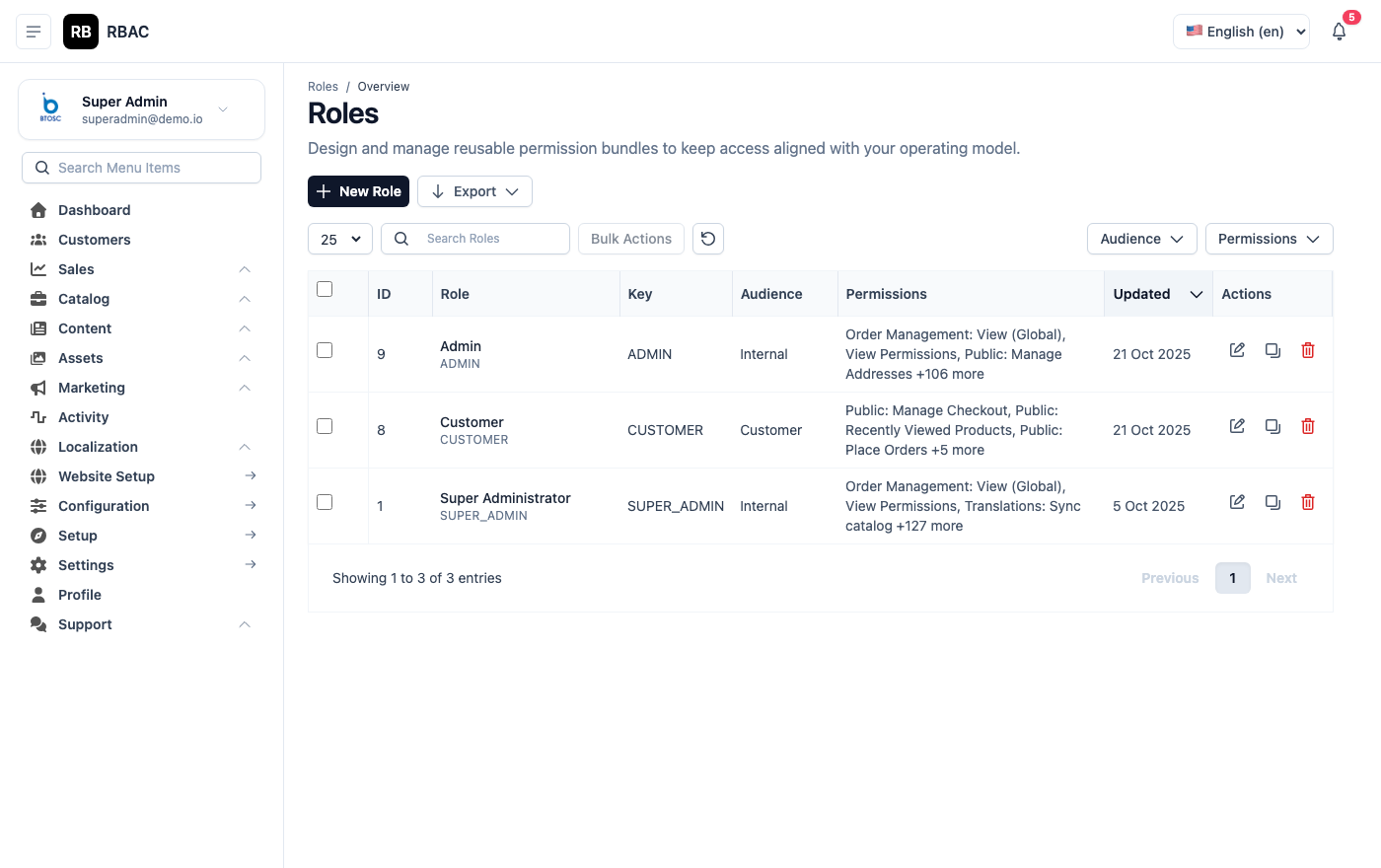 Roles list showing role names, number of assigned users, and permission count
Built-in Roles
SnapCart ships with three seeded roles:
| Role | Description |
|---|---|
| Super Admin | Full unrestricted access to all features. Cannot be edited or deleted. |
| Admin | Full store management access — products, orders, customers, coupons, shipping, blog, pages, gallery, notifications. No access to financial settings or user management. |
| Finance | Read-only access to orders, customers, and revenue reports. Can view payment settings. |
Viewing Roles
Go to Roles in the left sidebar. The table lists all roles with the number of users assigned and the number of permissions granted.
Creating a Role
- Click Add New.
- Enter a Role Name (e.g., "Content Editor", "Support Agent").
- In the Permissions section, check the boxes for each permission this role should have. Permissions are grouped by module for easier navigation.
- Click Save.
The new role immediately appears in the role dropdown when creating or editing admin users.
Editing a Role
Click Edit next to a role to update its name or change which permissions are checked. Changes take effect on the next login for users assigned to that role.
Currently logged-in users retain their old permissions until they log out and log back in.
Deleting a Role
A role can only be deleted if no users are currently assigned to it. Reassign or remove users first, then delete the role.
Example Role Configurations
Content Editor
Useful for a team member who manages the blog, CMS pages, and gallery only.
| Module | Permissions |
|---|---|
| Blog | View, Create, Edit, Delete |
| Pages | View, Create, Edit, Delete |
| Gallery | View, Upload, Delete |
Support Agent
Useful for customer service staff who need to view orders and customers but not modify financial data.
| Module | Permissions |
|---|---|
| Orders | View, Update Status |
| Customers | View |
| Coupons | View |
Shipping Manager
Useful for logistics staff who manage shipping zones and rates.
| Module | Permissions |
|---|---|
| Orders | View, Update Status |
| Shipping | View, Create, Edit, Delete |
How Permissions Apply at Runtime
When an admin user logs in:
- SnapCart loads their assigned role and fetches all permissions attached to it.
- The frontend renders the sidebar showing only the sections the user has permission to view.
- Every API request from the admin panel includes the user's JWT token. The backend validates the token and checks the required permission for that endpoint before processing the request.
This dual-layer check (frontend UI gating + backend API enforcement) means that even if someone knows the direct URL of an admin page, they will receive a 403 Forbidden response if their role lacks the required permission.
:::info Permission changes take effect on next login If you edit a role while a user is logged in, their active session still reflects the old permission set until they log out and log back in. For immediate enforcement (e.g., security incident), go to Users and set the user's status to Inactive, then reactivate once the role is corrected. :::
Role Assignment Rules
- Each admin user can have exactly one role.
- Roles are assigned when creating or editing a user. See Admin Users.
- The Super Admin role is a special system role. It bypasses all permission checks and cannot be edited, deleted, or assigned to additional users through the UI (only the original seeded Super Admin account holds this role).
Auditing Role Changes
Any change to a role's permission set is recorded in the Activity Log under the Role module, including which permissions were added or removed and which admin made the change.
Related
- Users — Assign roles to admin accounts
- Permissions — Full list of available permission keys