Checkout
The checkout flow guides customers from cart to confirmed order in three steps: Address → Shipping → Payment.
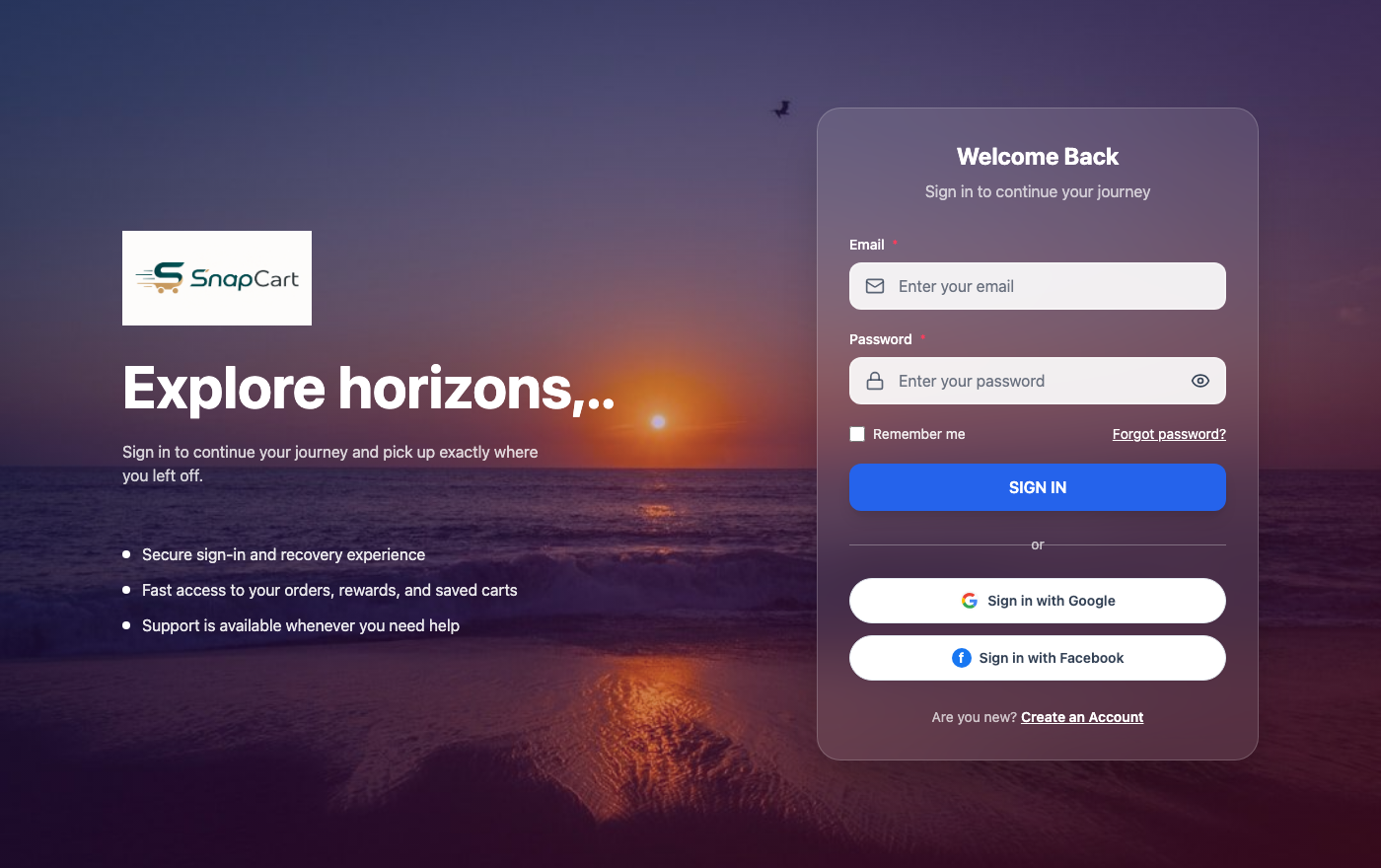 Storefront login page — customers sign in before proceeding to checkout
Before You Begin — Sign In or Guest Checkout
To reach the checkout flow, click Proceed to Checkout from the cart page.
- Signed-in customers are taken directly to Step 1.
- Guest checkout: If the store has guest checkout enabled, you can proceed without an account. You will be prompted to enter an email address for order confirmation. Note that guest orders cannot be tracked through the My Orders dashboard — you will only receive email updates.
- Sign in prompt: If guest checkout is disabled, you will see the sign-in page. Sign in or create an account to continue.
Step 1: Delivery Address
Select where the order should be delivered.
Using a Saved Address
If you are signed in and have saved addresses, a dropdown lists all saved addresses. Select one and click Continue to proceed to Step 2. Your default shipping address is pre-selected automatically.
Entering a New Address
Fill in the delivery address form:
| Field | Required | Notes |
|---|---|---|
| Full Name | Yes | The name of the person receiving the delivery |
| Phone Number | Yes | Used by the courier for delivery notifications and issues |
| Address Line 1 | Yes | Building number and street name |
| Address Line 2 | No | Apartment number, floor, landmark, or locality |
| City | Yes | City or town |
| State / Province | Yes | State, province, or region — affects shipping rates and tax |
| Country | Yes | Select from the dropdown of supported countries |
| Postal Code | Yes | PIN code or ZIP code — must be valid for the selected country |
Check Save this address to add it to your account's saved addresses for faster checkout in the future (only available when signed in).
Billing Address
By default, the billing address is the same as the delivery address. If you need a different billing address (for example, a corporate invoice address):
- Uncheck the Same as shipping address toggle.
- Enter the billing address in the form that appears.
The billing address is used for payment verification and invoicing only — it does not affect where the order is delivered.
Click Continue to move to Step 2.
Step 2: Shipping Method
SnapCart displays all shipping rates available for the delivery address you selected. Rates are calculated based on the destination country and state.
Selecting a Shipping Method
- Review the listed shipping options. Each option shows:
- Carrier and service name (e.g., "Standard Delivery", "Express Shipping")
- Estimated delivery time
- Shipping cost (or "Free" if applicable)
- Click the radio button next to your preferred option.
- Click Continue to move to Step 3.
If No Shipping Rates Are Shown
If no rates appear for your address:
- The store may not currently ship to your selected country or region. Contact the store's support team to confirm.
- If you recently changed your address, go back to Step 1 and confirm the country and postal code are correct.
- The store administrator may need to add a shipping rate for your region — direct them to Settings → Shipping in the admin panel.
Step 3: Payment
Applying a Coupon Code
Before selecting a payment method, you can apply a discount coupon:
- Locate the Discount Code field in the order summary panel (right side of the page).
- Enter the coupon code exactly as provided (codes are case-sensitive).
- Click Apply.
- If the code is valid, the discount amount is shown as a deduction in the order summary. If invalid or expired, an error message is displayed.
Only one coupon can be applied per order. To remove a coupon, click the × next to the applied discount.
Payment Methods
Select one of the available payment methods:
PayPal
- Select PayPal and click Place Order.
- You are redirected to the PayPal website to complete payment.
- Log in to your PayPal account (or pay as a guest using a card).
- Review the payment and click Pay Now on PayPal.
- You are redirected back to SnapCart. The order confirmation page is shown automatically.
PayPal is available for most countries and supports major credit/debit cards in addition to PayPal wallet balance.
Razorpay
- Select Razorpay and click Place Order.
- The Razorpay payment modal opens inline — you are not redirected to another website.
- Choose your payment method within the Razorpay modal:
- Credit or debit card
- UPI (enter your UPI ID or scan the QR code)
- Net banking (select your bank from the list)
- Razorpay wallet or pay-later options
- Complete the authentication (e.g., enter OTP for card or approve on your UPI app).
- On successful payment, the modal closes and the SnapCart order confirmation page is displayed.
PayTM
- Select PayTM and click Place Order.
- The PayTM payment modal opens inline.
- Sign in to your PayTM account or pay without signing in using a card or UPI.
- Select your preferred payment method within the PayTM modal (PayTM wallet, UPI, credit/debit card, net banking).
- Complete the transaction.
- On success, the modal closes and the order confirmation page is displayed.
Cash on Delivery (COD)
- Select Cash on Delivery.
- Review the order summary — note that some stores apply a COD handling fee shown as an additional line item.
- Click Place Order.
- No online payment is required. You pay the courier directly when your order arrives.
- The order confirmation page is shown immediately.
Cash on Delivery availability depends on the store's configuration and may not be offered for all delivery regions or order amounts above a certain threshold. If COD is not listed as an option, it is not available for your current cart or address.
Order Summary Review
Before clicking Place Order, review the full order summary:
| Line Item | Description |
|---|---|
| Subtotal | Sum of all item prices multiplied by quantity |
| Discount | Amount deducted by an applied coupon code |
| Shipping | Cost of the selected shipping method (or "Free") |
| Tax | Tax calculated based on your address and the applicable tax rate |
| COD Fee | Handling fee for Cash on Delivery orders (if applicable) |
| Total | Final amount charged to your payment method |
Scroll through the item list on the right to confirm the correct products, variants, and quantities are in your order before placing it.
Placing the Order
Click Place Order (or Pay Now for PayPal/Razorpay/PayTM, where the gateway captures payment first).
The button is disabled until all required steps are complete (address selected, shipping selected, payment method selected).
Order Confirmation
After a successful payment or COD order placement:
- Confirmation page: A page is shown with your Order Number, a summary of items, the delivery address, and the estimated delivery timeframe.
- Confirmation email: An email is sent to your registered email address (or the guest email you provided) containing the full order details and order number.
- My Orders: If you are signed in, the order appears immediately under My Account → My Orders with the status Pending (COD) or Processing (paid orders).
Save your order number — you will need it if you contact support about the order.
Failed Payment Retry Flow
If a payment fails (e.g., card declined, UPI timeout, browser closed during redirect):
- The order is created in the system with Pending payment status. No charge is made.
- You are shown a payment failure message with the option to retry.
- Go to My Account → My Orders and find the pending order.
- Click Retry Payment next to the order.
- Select the same or a different payment method and complete the transaction.
A Pending order is held for a limited time (typically 24 hours) before it is automatically cancelled if no payment is received. You will receive an email notification before automatic cancellation.
If you were charged but the order shows as Pending or Failed, contact the store's support team with your order number and bank transaction reference — the charge may need to be manually reconciled.
Troubleshooting
The checkout is asking me to sign in, but I do not have an account. Guest checkout may not be enabled on this store. Register for a free account to proceed. Registration takes under a minute — see the Customer Account guide.
No shipping methods are available for my address. The store may not ship to your country or region. Contact the store's support team. Alternatively, check that your postal code is entered correctly — an invalid postal code may prevent rate calculation.
My coupon code is not being accepted. Verify the code is typed correctly (codes are case-sensitive). Check that the coupon has not expired and that your cart meets any minimum order requirements. Some coupons are restricted to specific products, categories, or customer groups.
I was charged but did not receive an order confirmation email. Check your spam folder. If the email is not there, your order may have been created — check My Account → My Orders. If neither the email nor the order appear, contact the store with your payment reference number and the approximate transaction time.
The PayPal redirect page shows an error. PayPal may be temporarily unavailable. Return to the checkout and try a different payment method (Razorpay or COD), or try PayPal again after a few minutes.