Shopping
This guide walks through the storefront shopping experience — from discovering products to filling the cart.
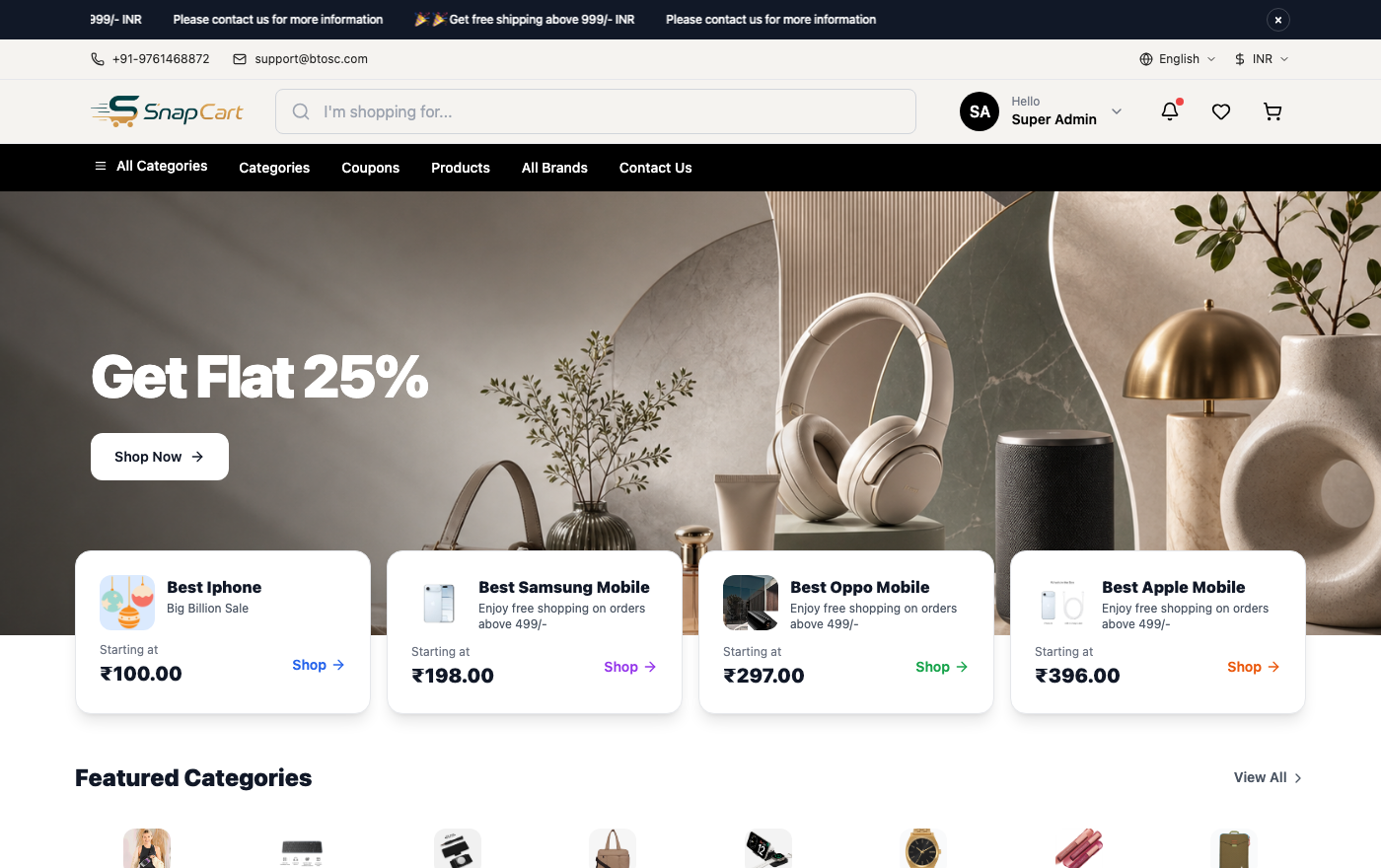 SnapCart storefront homepage featuring banner carousel, categories, and featured products
Storefront Navigation
Top Navigation Bar
The top navigation bar is present on every page and provides quick access to key sections:
| Element | Description |
|---|---|
| Store Logo | Click to return to the homepage from any page |
| Main Menu | Top-level category links. Hover over a menu item to see a dropdown of child categories |
| Search Bar | Type to search for products by name, description, or keyword |
| Wishlist Icon | View your saved wishlist items (sign in required) |
| Account Icon | Sign in, register, or access your account dashboard |
| Cart Icon | Open the cart drawer or cart page. Shows the current item count as a badge |
Category Breadcrumbs
On category pages and product detail pages, a breadcrumb trail appears below the navigation bar, showing your current location in the category hierarchy:
Home > Electronics > Smartphones > Android Phones
Click any breadcrumb segment to navigate back to that level. Breadcrumbs help you understand where a product sits in the catalogue and make it easy to browse related products in a parent category.
Homepage Sections
The homepage is designed to showcase the best of your product catalogue. It is organised into several sections:
Hero Banner
A full-width image carousel at the top of the homepage. Each slide can contain:
- A promotional image (1920 × 600 px recommended)
- A headline and sub-headline
- A call-to-action button linking to a category, sale page, or product
Banners cycle automatically every few seconds. Click the left/right arrows to navigate manually, or click the indicator dots at the bottom of the banner.
Featured Categories
A grid or row of category tiles below the hero banner, showing category images and names. Click any tile to browse that category. Featured categories are selected by the store administrator.
Flash Deals
If active, a Flash Deals section displays a countdown timer alongside a curated selection of products on time-limited discounts. The timer shows hours, minutes, and seconds remaining. When the timer reaches zero, the sale prices expire and products revert to their regular prices.
New Arrivals
A product carousel showing recently added products — sorted by the date they were added to the catalogue. This section updates automatically as new products are published.
Featured Products
A curated grid of products that the store administrator has manually selected for homepage visibility. These are typically bestsellers, high-margin items, or products with special promotions.
Brand Carousel
A scrollable row of brand logos. Click a brand logo to view all products from that brand. The brand carousel only displays active brands that have a logo uploaded.
Category Pages
Navigate to a category from the top menu, a featured category tile, or a breadcrumb link. Category pages display all products in that category (and optionally its sub-categories).
Sidebar Filters
Use the filter panel on the left side of category pages to narrow the product listing:
| Filter | Description |
|---|---|
| Brand | Check one or more brands to show only products from those manufacturers |
| Price Range | Drag the price range slider or enter minimum and maximum values to filter by price |
| Rating | Filter to show only products with a minimum average review rating (e.g., 4 stars and above) |
| Attributes | Attribute-specific filters appear dynamically based on the products in the category — for example, a Size filter for clothing categories or a Storage filter for electronics |
Filters are additive — selecting multiple values within the same filter shows products matching any of those values (OR logic). Filters from different groups narrow the results further (AND logic). For example: Brand = Nike AND Price = ₹1,000–₹5,000.
Click Clear Filters to reset all active filters and see the full category listing again.
Sort Options
Use the Sort By dropdown (top-right of the product grid) to change the display order:
| Sort Option | Description |
|---|---|
| Relevance | Default order set by the store administrator |
| Price: Low to High | Cheapest products first |
| Price: High to Low | Most expensive products first |
| Newest | Most recently added products first |
| Best Selling | Products with the highest historical sales volume first |
| Top Rated | Products with the highest average customer rating first |
Pagination
Category pages display products in pages (typically 20 per page). Use the page navigation at the bottom of the grid to move between pages, or click Load More if the category uses infinite scroll.
Search Functionality
Use the search bar in the top navigation to find products across the entire catalogue.
- Instant results: As you type, a dropdown of matching products appears below the search bar (typically after 2 or more characters). Click a result to go directly to that product.
- Full search results page: Press Enter or click the search icon to see all results on a dedicated search results page.
- What is searched: Product names, descriptions, SKUs, tags, and brand names.
- No results: If no products match your query, the results page suggests related searches or shows popular products. Try different keywords, check spelling, or browse categories directly.
Product Detail Page
Clicking a product card opens its detail page. This page contains all the information needed to make a purchase decision.
Image Gallery
The main image is displayed at full size on the left. Below it, thumbnail images show additional angles and variant-specific photos.
- Click a thumbnail to make it the main image.
- Click the main image (or a zoom icon if shown) to open a full-screen lightbox with zoom capability.
- In the lightbox, scroll the mouse wheel or pinch (on touch screens) to zoom in and out. Pan by clicking and dragging.
Product Information
| Element | Description |
|---|---|
| Breadcrumbs | Category path for this product — links back to the category hierarchy |
| Brand | Clickable brand name links to the brand's product listing page |
| Product Name | Full product title |
| Rating Summary | Average star rating and total review count. Click to scroll to the Reviews tab. |
| Price | Regular price. If a sale price is active, the original price is shown with a strikethrough and the sale price and savings percentage are highlighted |
| Flash Deal Timer | Countdown timer if this product is part of an active flash deal |
| Stock Status | "In Stock", "Only X left", or "Out of Stock". Out-of-stock products cannot be added to the cart |
| SKU | Product stock-keeping unit code (informational) |
Variant Selection
If a product has variants (e.g., Size and Colour), each attribute is shown as a selector above the quantity field:
- Select a value for each attribute. For colour attributes, swatches are displayed as circular colour chips. For text attributes (Size, Storage), chip buttons or a dropdown is shown.
- The main image updates to show the variant-specific image (if one has been uploaded for that combination).
- The price and stock status update to reflect the selected variant.
- If a particular combination is unavailable, the relevant swatch is shown with a strikethrough or disabled state.
All attributes must be selected before you can add the item to the cart. If you attempt to add to cart without completing all selections, the missing attribute field is highlighted with an error.
Quantity Selector
Use the − and + buttons to set the desired quantity, or type directly into the quantity field. The quantity cannot exceed the available stock for the selected variant.
Add to Cart
Click Add to Cart to add the selected product and quantity to your shopping cart. A confirmation toast notification appears, and the cart icon badge increments.
If the product is out of stock, the Add to Cart button is replaced with an Out of Stock label and cannot be clicked.
Add to Wishlist
Click the heart icon (or Add to Wishlist button) to save the product to your wishlist. You must be signed in — if you are not, you are prompted to sign in first. The heart icon fills to indicate the product is in your wishlist. Click it again to remove it.
Product Tabs
Below the main product details, a tabbed section provides additional information:
Description
The full product description written by the store, including features, benefits, and any relevant details. May include formatted text, images, and bullet points.
Specifications
A structured table of technical specifications (e.g., Dimensions, Weight, Material, Battery Capacity, Warranty). This tab is shown only if specifications have been entered for the product.
Reviews
Customer ratings and written reviews for this product. Shows:
- The overall average rating as a star score and number
- A rating breakdown bar chart (how many reviews gave 5, 4, 3, 2, and 1 stars)
- Individual reviews listed with: reviewer name, date, star rating, and review text
Writing a Product Review
To maintain review quality and authenticity, only verified purchasers can leave reviews.
Eligibility
You must meet all of the following conditions:
- You are signed in to your account.
- You have placed an order containing this product.
- The order status is Delivered (not just shipped — the order must be marked as delivered by the store).
Submitting a Review
- Go to My Account → My Orders and find the delivered order containing the product you want to review.
- Click Write a Review next to the product name.
- Alternatively, on the product detail page, scroll to the Reviews tab and click Write a Review. You are prompted to sign in if not already.
- Select a Star Rating from 1 to 5:
- 1 star: Very poor
- 2 stars: Poor
- 3 stars: Average
- 4 stars: Good
- 5 stars: Excellent
- Write your Review in the text field. Describe your experience with the product — what you liked, what could be improved, and how it compares to your expectations.
- Click Submit Review.
Your review is submitted for approval. Once approved by the store administrator, it appears publicly on the product's Reviews tab. You will receive an email notification when your review is approved.
Cart
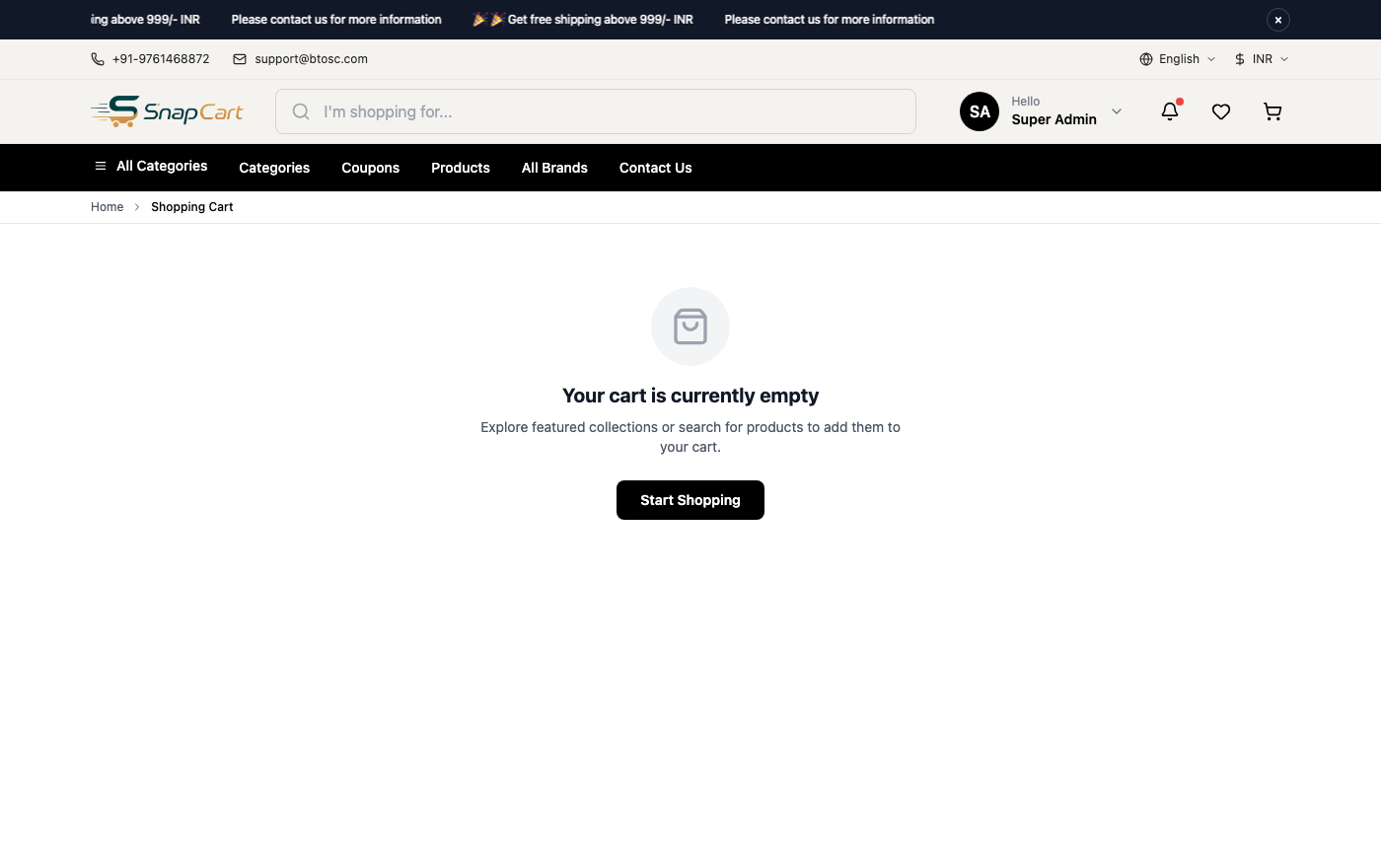 Shopping cart page showing items, quantities, coupon field, and order total
Click the cart icon (top-right) to view your cart.
Cart Actions
| Action | Description |
|---|---|
| Update Quantity | Use the − and + buttons or type a new number to change the quantity of any item |
| Remove Item | Click the × icon or Remove button to delete an item from the cart entirely |
| Apply Coupon | Enter a discount code in the Coupon Code field and click Apply to deduct a discount from the total |
| Proceed to Checkout | Start the checkout flow |
The cart shows a live running total including the subtotal, any applied discount, estimated shipping (if shown), and tax. The total updates immediately when quantities are changed or a coupon is applied.
Cart contents are saved to your account when signed in and persist across sessions and devices. Guest cart contents are stored in the browser session and may be lost if the browser is closed.
Wishlist
Click the heart icon on any product card or product detail page to save it to your Wishlist. You must be signed in.
To access your wishlist, go to My Account → Wishlist.
From the wishlist you can:
- Add to Cart: Move an item to your cart (variant selection may be required).
- Remove: Remove the item from your wishlist.
- View Product: Click the product image or name to return to the product detail page.
Wishlist items are saved indefinitely. They are not reserved — if a wishlisted product goes out of stock, it remains in your wishlist but cannot be added to the cart until stock is replenished.
Troubleshooting
A product variant I want is shown as unavailable (greyed out). The specific variant combination is out of stock. Check back later, or contact the store to enquire about restocking. You can add the product to your wishlist and monitor for availability.
I cannot see the filter sidebar on a category page. On mobile devices, filters are hidden behind a Filters button. Tap the button to open the filter panel as a drawer overlay. On tablet and desktop the sidebar is shown by default.
The search is not returning a product I know exists. The product may be inactive or out of stock (and out-of-stock visibility may be disabled). Try browsing the category directly. If the product exists and should be visible, contact the store's support team.
My review submission was not approved. Reviews are moderated by the store before publication. Approval typically takes 1–2 business days. Reviews that contain inappropriate language, spam, or unrelated content may be rejected. You will receive an email notification of the decision.